
Why The Ty-el's Settings Overlay UI Pack is a top-tier texture pack mod for Minecraft 1.21.41
Developed by the talented creator tlgm2308, The Ty-el's Settings Overlay UI Pack stands out as a highly recommended selection for your Minecraft client. It is fully optimized, compatibility-tested, and brings a major upgrade to the gameplay experience in Minecraft version 1.21.41.
⚙️ Quick Resource Specs
| Mod Creator | tlgm2308 |
| Latest Version | 1.21.41 |
| Supported Game Versions | 1.21.41, 1.21.40, 1.21.30, 1.21.21, 1.21.20 |
| File Size | 62.31 KB |
| Last Updated | |
| Total Downloads | 3,275,226 downloads |
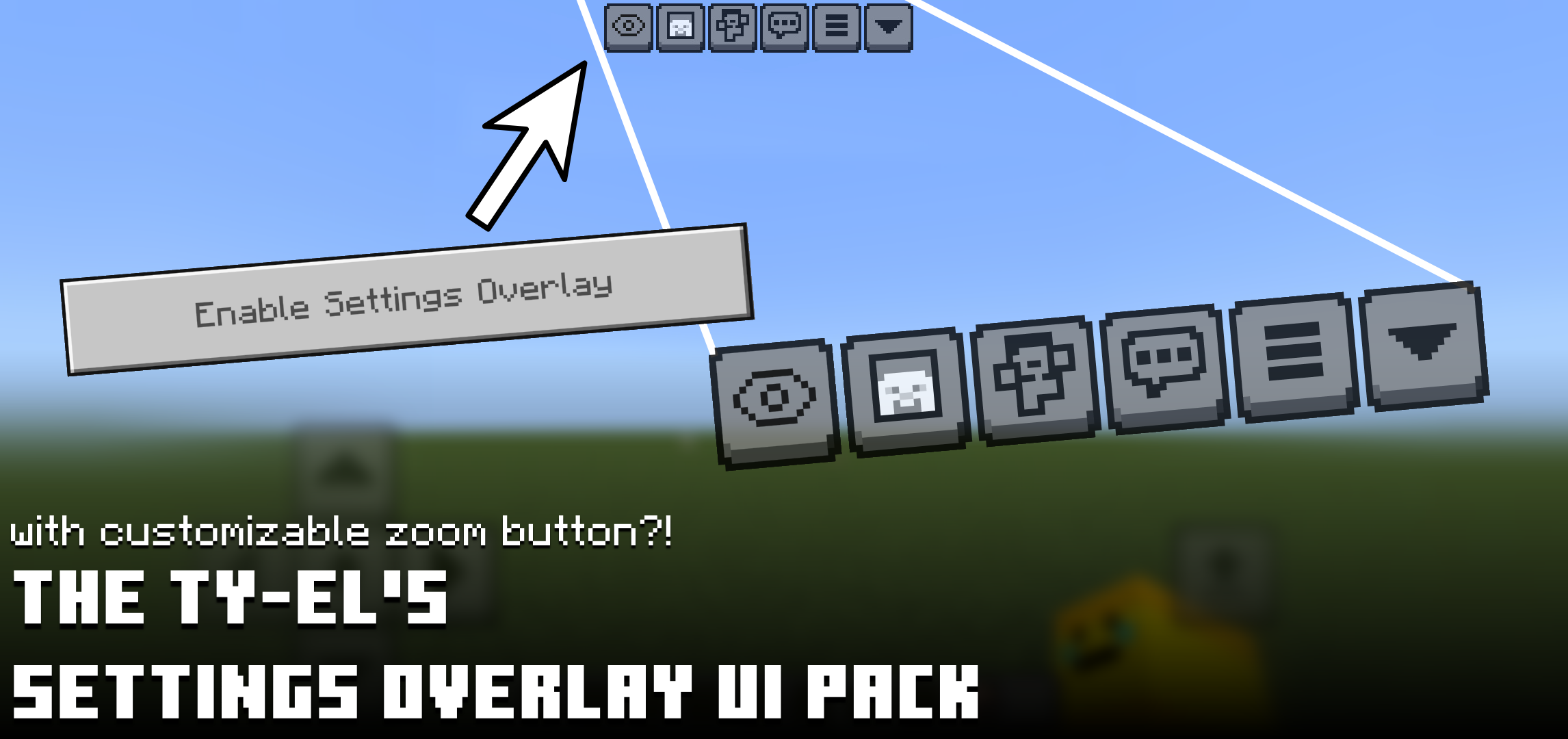
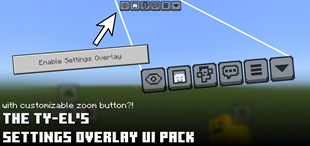
The Ty-el's Settings Overlay UI Pack is a small UI treatment pack for Vanilla UI, unlike other UI packs, this pack adds some magical screen properties and tweaks to the in-game Settings Screen to get Camera Perspective toggle on HUD (YES!), FOV slider, FOV Quick Toggle (aka. Zoom In or Out button!), and more! The pack only works for devices having Touch capabilities, and compatible with almost every texture pack in the world too!
Creator: @tlgm2308 (X (Twitter))
Important Notices
Read carefully before downloading and using, or you won’t use the pack correctly!
- This version of the pack requires Minecraft v1.20.40 or higher! It technically could work on older versions of the game, but I can’t guarantee the compatibility of Spectator Mode because Spectator Mode did not exist in older versions, and it needs to be older than v1.19.10 (versions between v1.19.10 and v1.20.32 will break the pack).
- IMPORTANT! Due to yet another game bug can’t be fixed by resource packs where the game won’t register any UI inputs in HUD while in Spectator Mode, I need to temporarily disable Settings Overlay in Spectator mode, a button will appear at the bottom right if player entered Spectator mode, pressing it will show the instructions on how to exit Spectator mode. Fortunately, I made a workaround of that issue, there is an experimental flag "$allow_settings_overlay_always_accepts_input” inside the config file “/ui/_global_variables.json” that allows you to exit Spectator mode from Pause Screen, it’s very buggy and that’s why I didn’t add it to the main pack as of now.
- This pack currently has a feature “FOV Quick Toggle” that is not enabled by default. You need to change Pack Settings to “[EXPERIMENTAL] FOV Quick Toggle” to make it show up in HUD. This is because sometimes the game will crash if you use this feature, it’s a rare and unwanted behavior and is hard to fix.
- This pack is made only for devices with Touch capabilities, it can be on your phone (iOS or Android…), tablet, or on PC with Touch supports, etc.
- It’s not recommended to use this pack on low-end devices, since this pack’s purpose is to render the whole settings screen on HUD, and rendering more screens will affect the overall performance.
- It’s a little bugged when using “Customize Touch Controls” while having Settings Overlay pack activated, although it still works fine with minor visual bugs, make sure after you close “Customize Touch Controls”, you also need to close Settings Overlay and close Pause Screen as well to let the game update and resolve all visual UI issues before reopening Settings Overlay again.
- Some settings won’t be applied until you close Settings Overlay, you may need to close Settings and reopen again to apply all changed settings.
- You can freely close the Settings Overlay after a period of time to make sure the performance won’t affect your gameplay. Make sure you don’t attempt to open multiple “Settings Overlay” at the same time, or you might experience worse and worse performance, slowly~
Showcase Video
(to be added)
How to Use?
- It’s very easy to use! Make sure you are inside a world, or a realm, or a server, tap the Pause button to open the Pause Menu.

- Then tap on the “Enable Settings Overlay” button. (It was the “Settings” button, so in case of needing to enter the original Settings Screen, you need to press that. It could be “Settings”, or “Options”, depending on your applied resource packs.)
- (Wait a bit, it can take a little bit of time the first time you open it in a world session.)

- The toast message “Settings Overlay enabled successfully!” will popup and 2 (or 3) new buttons will appear at the top of the HUD.
Camera Perspective Toggle
- The first button at the leftmost is the “Camera Perspective” toggle. (Or more familiar, the F5 button!) You can freely change your camera perspective when playing!


FOV Quick Toggle [Experimental]
- The second button at the leftmost is the “FOV Quick Toggle” button. This allows you to quickly toggle between two specific FOV values that you can customize in “/ui/_global_variables.json”. By default, this will toggle FOV between 30.0° and 70.0°.
- PLEASE NOTE: This feature is not enabled by default. You need to change Pack Settings to “[EXPERIMENTAL] FOV Quick Toggle” to make it show up in HUD. This is because sometimes the game will crash if you use this feature, it’s a rare and unwanted behavior and is hard to fix.


Quick Settings Menu
The third button at the rightmost is the “Quick Settings Menu” button. You can directly access some certain features right inside the menu, including:
+ Gamemode Switcher! Note that this will change only your “personal game mode”. Note: You need to have “Allow Cheats” enabled in world settings and have permissions in order to access this.
+ FOV slider! You can now “zoom” in Minecraft with customized strength!
+ “Content Log History” button, good for content creators. Note: You need to have the “Enable Content Log GUI” option enabled in Settings/Creator in order to access this.
+ “Show Settings” button to access the full original Settings Screen.
+ The “X” button next to the “Show Settings” button to close and exit Settings Overlay.


Customization
Players can customize settings, size, offset and even transparency of Settings Overlay buttons and components. To customize them, open the "/ui/_global_variables.json" file in any basic text editor app, find the "Overlay Components Customization" section. Customize any variables you need and then save it! This feature was made to deal with various screen resolutions and GUI scales and resulted in imperfect top buttons' size and offsets.
Note: All anchors' origins [ 0, 0 ] (used for "anchor_from" and "anchor_to") are always within Screen Safe Area.
List of all customizable components:
- Camera Perspective toggle.
- FOV Quick Toggle button (Preferred FOV and Toggled FOV are included).
- More Options/Settings toggle.
- Quick Settings panel (sizing is not supported).
- "Escape Spectator" toggle (only available when "$allow_settings_overlay_always_accepts_input" is enabled).
Here's an example of the Camera Perspective toggle moved to the top right of the screen, with larger button size:

Sample Code Snippet:

Resource Pack Compatibility
The Ty-el's Settings Overlay UI Pack is made to be compatible with almost every single texture pack in the world! But make sure you put the Settings Overlay pack below all those packs.
It can be like this:

Known Issues
- Once you enter the world, you won't get Settings Overlay feature automatically enabled, you need to enable it manually. This is impossible to make it automated, maybe a small external macro can help?
- You will always see the D-Pad or control buttons when inside the in-game Settings Screen, that’s the main purpose of the Settings Overlay pack, and it can’t be fixed.
- Settings Overlay will automatically disappear once you trigger “Entering the Nether” or “Entering the End” screens, or after you leave your world(s). This is impossible to fix and you need to manually enable settings overlay again later.
Terms of Use
You are FREE to:
- Make contents about this pack as long as you provide credits or proper attributions in the description.
- Customize and share your /ui/_global_variables.json configurations.
- Modify the pack only for personal uses.
You are NOT ALLOWED to:
- Use, or claim any of my codes and use as your own, please respect my hard works ;-;
- Distribute the modified pack to public.
- Redistribute this pack to other sites/app stores, no one will have the permission.
- Make contents about this pack but without proper attributions.
- Use this pack in third-party projects, instead, let players know that your projects are compatible with this pack.
Final Notes
If you found any bugs, or feedback about this pack, let me know on my X (formerly known as Twitter, why) and Discord with the same username @tlgm2308.
Special Thanks to
Pack Translators
- 日本語 (日本) - @nattsuiy (X)
- 中文 (简体) - niganma (Discord)
- Українська (Україна) - uacreeper (Discord)
Pack Testers
- niganma (Discord)
The Ultimate Guide to The Ty-el's Settings Overlay UI Pack
If you are exploring the vast world of Minecraft modifications, The Ty-el's Settings Overlay UI Pack by tlgm2308 is a standout texture that deserves your attention. With over 3,275,226 downloads, it has become a staple for players looking to enhance their experience. As the creator describes it, this project is "Adds some magical screen properties and tweaks to the in-game Minecraft Settings Screen to get Camera Perspective toggle on HUD, FOV slider and Quick Toggle, and more!". Whether you are a veteran builder constructing massive cities, or simply a casual player looking to upgrade your survival world, this guide will provide you with all the essential details on how The Ty-el's Settings Overlay UI Pack alters the game.
What Makes It Special?
Unlike standard textures that simply alter superficial elements, The Ty-el's Settings Overlay UI Pack introduces a wide array of visual and mechanical features designed to seamlessly blend into the vanilla aesthetic. tlgm2308 has clearly spent significant time refining the project to ensure that every aspect feels polished and responsive for version 1.21.41.
Installation Guide
Getting The Ty-el's Settings Overlay UI Pack up and running is straightforward. Follow these step-by-step instructions:
- Verify Your Version: Ensure your Minecraft launcher is set to version 1.21.41.
- Install Mod Loader (if required): If this is a mod, download the compatible loader (Forge, Fabric, NeoForge).
- Download the File: Click the secure download button above to retrieve the official file from CurseForge.
- Move the File: Place the downloaded file into your `mods`, `shaderpacks`, or `resourcepacks` folder depending on the texture type.
- Launch and Enjoy: Open Minecraft, navigate to the respective settings menu, and activate The Ty-el's Settings Overlay UI Pack.
Compatibility & Performance
Compatibility is robust. The Ty-el's Settings Overlay UI Pack is designed specifically for version 1.21.41, taking full advantage of the latest engine optimizations. During typical gameplay, this addition maintains a stable frame rate, though lower-end laptops might experience slight stuttering. We recommend pairing this with performance boosters like Sodium or Iris to guarantee a silky-smooth experience.