PiglixMCMods LogoPiglixMCMods
HomeShadersTexturesModsLow-End ShadersRTX ShadersSavedGuidesAbout
GET IT ONGoogle Play

Popular Collections

📱 Performance HubBest Low-End ShadersMCPE Performance Mods
✨ Realism & RTXRealistic RTX ShadersRTX Texture Packs for MCPE
🤖 Platform CompatibilityMinecraft PE Shaders 1.21Shaders for Android & iOS
⚔️ Gameplay VibeTop PvP Texture PacksMedieval Texture Packs
🤝 Community & SocialsYouTubeInstagram
Get the Android App — Free on Play Store
HomeGuidesAbout UsSponsor & PartnerContactPrivacy PolicyTerms & ConditionsDisclaimer
Minecraft>Textures>BetterMusic & BetterJukebox
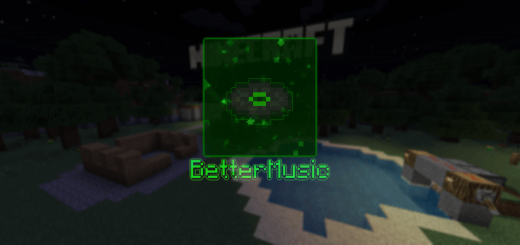
BetterMusic & BetterJukebox logo

BetterMusic & BetterJukebox

By👤AniDx

BetterMusic and BetterJukebox enhance your in-game audio with classic or custom tracks, adjustable jukebox range including optional stereo mode, and multi-track discs. Use them separately or together for a fully customizable sound experience.

Why BetterMusic & BetterJukebox is a top-tier texture pack mod for Minecraft 1.21.132

Developed by the talented creator AniDx, BetterMusic & BetterJukebox stands out as a highly recommended selection for your Minecraft client. It is fully optimized, compatibility-tested, and brings a major upgrade to the gameplay experience in Minecraft version 1.21.132.

⚙️ Quick Resource Specs

Mod CreatorAniDx
Latest Version1.21.132
Supported Game Versions1.21.132, 1.21.131, 1.21.130, 1.21.124, 1.21.123
File Size1.58 MB
Last UpdatedUpdated: June 6, 2026
Total Downloads6,644 downloads
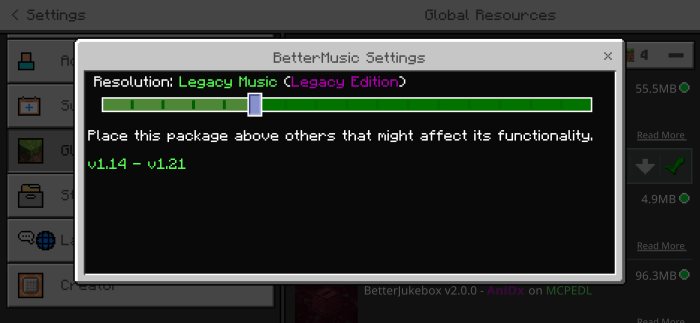
BetterMusic & BetterJukebox screenshot active
Looking for the best textures updates? BetterMusic & BetterJukebox by AniDx provides excellent features tailored for Minecraft 1.21.132 players. It stands out in the textures category for its stability and beautiful execution.


bettermusic


Subpacks (BetterMusic)

No Music

Music will not play automatically.


Default Music

Music plays more frequently but not continuously.


Default Music+ (Constant Music)

Music plays continuously.


Old Music

Plays only the classic tracks composed by C418.


New Music

Plays only the tracks introduced from the Aquatic Update onward. *needs work


Legacy Music (Legacy Edition)

Replicates the music experience of the Legacy Edition by 4J Studios.


Legacy Music+ (Legacy Edition, Additional Music)

Features Legacy Edition music by 4J Studios with added unused tracks from Volume Alpha and Volume Beta.


Legacy Music+ (Legacy Edition, Christmas Music)

Plays festive tracks used in the Legacy Edition’s Festive Mash-up Pack alongside regular Legacy Edition music.


Menu Music Only

Plays music that is exclusive to the main menu.


Creative Mode Music Only (Excludes Menu Music)

Plays only music used in Creative Mode, with menu tracks playing regardless.


Survival Mode Music Only (Classic Music, Excludes Menu Music)

Plays only music used in Survival Mode, with menu tracks playing regardless.


Nether Dimension Music Only (Excludes Menu Music)

Plays only music used in the Nether dimension, with menu tracks playing regardless.


Custom Music (Tracks 1-100)

Plays up to 100 custom tracks located in sounds/custom/generic.


Custom Music (Tracks 1-50)

Plays the first 50 custom tracks located in sounds/custom/generic.


Custom Music (Tracks 51-100)

Plays the last 50 custom tracks located in sounds/custom/generic.


Custom Music+ (Based on Dimension/Gamemode)

Plays custom music tailored to the player’s dimension or gamemode, with up to 10 tracks per specific dimension or gamemode.


Custom Music++ (Based on Biome/Dimension/Gamemode)

Plays custom music tailored to the player’s biome, dimension, or gamemode, with up to 10 tracks per specific biome, dimension, or gamemode.


Custom Music (BetterMusic, Directory Structure, etc.)

Custom Music (Generic)

  • Path: custom/generic


Custom Music+

Music is organized based on dimension and game mode, with the following directories:

  • custom/menu
  • custom/game/creative
  • custom/game
  • custom/game/nether
  • custom/game/end


Custom Music++

This level includes additional subdirectories (excluding the main overworld directory but adding specific biomes within it):

  • custom/menu
  • custom/game/creative
  • custom/game
  • custom/game/water


Overworld Biomes:

  • custom/game/overworld/desert
  • custom/game/overworld/forest
  • custom/game/overworld/flower_forest
  • custom/game/overworld/birch_forest
  • custom/game/overworld/taiga
  • custom/game/overworld/roofed_forest
  • custom/game/overworld/jungle
  • custom/game/overworld/bamboo_jungle
  • custom/game/overworld/mesa
  • custom/game/overworld/swamp
  • custom/game/overworld/mangrove_swamp
  • custom/game/overworld/meadow
  • custom/game/overworld/grove
  • custom/game/overworld/cherry_grove
  • custom/game/overworld/snowy_slopes
  • custom/game/overworld/stony_peaks
  • custom/game/overworld/jagged_peaks
  • custom/game/overworld/frozen_peaks
  • custom/game/overworld/dripstone_caves
  • custom/game/overworld/lush_caves
  • custom/game/overworld/deep_dark
  • custom/game/overworld/sulfur_caves


Nether Biomes:

  • custom/game/nether/nether_wastes
  • custom/game/nether/soulsand_valley
  • custom/game/nether/basalt_deltas
  • custom/game/nether/crimson_forest
  • custom/game/nether/warped_forest


End Biomes:

  • custom/game/end
  • custom/game/end/endboss
  • custom/game/end/credits


Music Usage and Track Limits

Music files can be placed in any of the directories listed above, depending on the selected pack option:


Custom Music (Generic):

Up to 100 tracks (named custom1.ogg to custom100.ogg or custom1.wav to custom100.wav).


Custom Music+ and Custom Music++:

Up to 10 tracks per directory (named custom1.ogg to custom10.ogg or custom1.wav to custom10.wav).


File Format Requirements

All music files must be in one of the following formats:

  • Vorbis (.ogg)
  • PCM (.wav)


Note: Converting to PCM (.wav) is not recommended. Additionally, if the original audio file is in a lossy format (such as MP3), converting it to PCM (.wav) will not improve the quality and will significantly increase the file size. It's best to use Vorbis (.ogg).


Files in other formats will not be playable in the game. For file conversion, you can use:

  • Convertio
  • FFmpeg Web Interface
  • FFmpeg GUI (Android)


Subpacks (BetterJukebox)

This list is somewhat redundant since the Subpacks for BetterJukebox are self-explanatory. "Stereo" disables 3D directional audio, while "Multitrack" enables up to 10 tracks per disc.


Regular:

  • Jukebox Radius: 32
  • Jukebox Radius: 128
  • Jukebox Radius: 256
  • Jukebox Radius: 512
  • Jukebox Radius: 1024
  • Jukebox Radius: Infinite (Stereo)


Custom Music:

  • Jukebox Radius: 32 (Custom Music)
  • Jukebox Radius: 64 (Custom Music)
  • Jukebox Radius: 128 (Custom Music)
  • Jukebox Radius: 256 (Custom Music)
  • Jukebox Radius: 512 (Custom Music)
  • Jukebox Radius: 1024 (Custom Music)
  • Jukebox Radius: Infinite (Custom Music, Stereo)


Custom Music, Multitrack:

  • Jukebox Radius: 32 (Custom Music, Multitrack)
  • Jukebox Radius: 64 (Custom Music, Multitrack)
  • Jukebox Radius: 128 (Custom Music, Multitrack)
  • Jukebox Radius: 256 (Custom Music, Multitrack)
  • Jukebox Radius: 512 (Custom Music, Multitrack)
  • Jukebox Radius: 1024 (Custom Music, Multitrack)
  • Jukebox Radius: Infinite (Custom Music, Multitrack, Stereo)


Other:

  • Commands Only


Custom Music (BetterJukebox, Directory Structure, etc.)

Custom Music (Generic)

  • Path: custom/generic/records


Custom Music (Multitrack)

This level includes additional subdirectories (excluding the main multitrack directory but adding specific records within it):


Records:

  • custom/multitrack/records/record_13
  • custom/multitrack/records/record_cat
  • custom/multitrack/records/record_chirp
  • custom/multitrack/records/record_wait
  • custom/multitrack/records/record_mellohi
  • custom/multitrack/records/record_stal
  • custom/multitrack/records/record_strad
  • custom/multitrack/records/record_11
  • custom/multitrack/records/record_ward
  • custom/multitrack/records/record_mall
  • custom/multitrack/records/record_blocks
  • custom/multitrack/records/record_far
  • custom/multitrack/records/record_pigstep
  • custom/multitrack/records/record_otherside
  • custom/multitrack/records/record_5
  • custom/multitrack/records/record_relic
  • custom/multitrack/records/record_creator
  • custom/multitrack/records/record_creator_music_box
  • custom/multitrack/records/record_precipice
  • custom/multitrack/records/record_tears
  • custom/multitrack/records/record_lava_chicken
  • custom/multitrack/records/record_bounce


Music Usage and Track Limits

Music files can be placed in any of the directories listed above, depending on the selected pack option:


Custom Music (Generic):

Up to 22 tracks (named custom1.ogg to custom21.ogg or custom1.wav to custom21.wav).


Custom Music (Multitrack):

Up to 10 tracks per directory (named custom1.ogg to custom10.ogg or custom1.wav to custom10.wav).


File Format Requirements

All music files must be in one of the following formats:

  • Vorbis (.ogg)
  • PCM (.wav)


Note: Converting to PCM (.wav) is not recommended. Additionally, if the original audio file is in a lossy format (such as MP3), converting it to PCM (.wav) will not improve the quality and will significantly increase the file size. It's best to use Vorbis (.ogg).


Files in other formats will not be playable in the game. For file conversion, you can use:

  • Convertio
  • FFmpeg Web Interface
  • FFmpeg GUI (Android)


Translations (Contributors)

  • Bulgarian [bg_bg] – None
  • Czech [cs_cz] – None
  • Danish [da_dk] – None
  • German [de_de] – Native (Pack)
  • Greek [el_gr] – None
  • English (UK) [en_gb] – None
  • English (US) [en_us] – Native (Pack)
  • Spanish (Spain) [es_es] – None
  • Spanish (Mexico) [es_mx] – None
  • Finnish [fi_fi] – None
  • French (Canada) [fr_ca] – None
  • French (France) [fr_fr] – None
  • Hungarian [hu_hu] – None
  • Indonesian [id_id] – None
  • Italian [it_it] – None
  • Japanese [ja_jp] – None
  • Korean [ko_kr] – None
  • Norwegian (Bokmål) [nb_no] – None
  • Dutch [nl_nl] – None
  • Polish [pl_pl] – None
  • Portuguese (Brazil) [pt_br] – None
  • Portuguese (Portugal) [pt_pt] – None
  • Russian [ru_ru] – None
  • Slovak [sk_sk] – None
  • Swedish [sv_se] – None
  • Turkish [tr_tr] – None
  • Ukrainian [uk_ua] – None
  • Chinese (Simplified) [zh_cn] – LishangXueqi
  • Chinese (Traditional) [zh_tw] – None


If you have any issues or feedback, feel free to leave a comment on this submission or message me via Discord: @anidx.


The Ultimate Guide to BetterMusic & BetterJukebox

If you are exploring the vast world of Minecraft modifications, BetterMusic & BetterJukebox by AniDx is a standout texture that deserves your attention. With over 6,644 downloads, it has become a staple for players looking to enhance their experience. As the creator describes it, this project is "BetterMusic and BetterJukebox enhance your in-game audio with classic or custom tracks, adjustable jukebox range including optional stereo mode, and multi-track discs. Use them separately or together for a fully customizable sound experience.". Whether you are a veteran builder constructing massive cities, or simply a casual player looking to upgrade your survival world, this guide will provide you with all the essential details on how BetterMusic & BetterJukebox alters the game.

What Makes It Special?

Unlike standard textures that simply alter superficial elements, BetterMusic & BetterJukebox introduces a wide array of visual and mechanical features designed to seamlessly blend into the vanilla aesthetic. AniDx has clearly spent significant time refining the project to ensure that every aspect feels polished and responsive for version 1.21.132.

Installation Guide

Getting BetterMusic & BetterJukebox up and running is straightforward. Follow these step-by-step instructions:

  1. Verify Your Version: Ensure your Minecraft launcher is set to version 1.21.132.
  2. Install Mod Loader (if required): If this is a mod, download the compatible loader (Forge, Fabric, NeoForge).
  3. Download the File: Click the secure download button above to retrieve the official file from CurseForge.
  4. Move the File: Place the downloaded file into your `mods`, `shaderpacks`, or `resourcepacks` folder depending on the texture type.
  5. Launch and Enjoy: Open Minecraft, navigate to the respective settings menu, and activate BetterMusic & BetterJukebox.

Compatibility & Performance

Compatibility is robust. BetterMusic & BetterJukebox is designed specifically for version 1.21.132, taking full advantage of the latest engine optimizations. During typical gameplay, this addition maintains a stable frame rate, though lower-end laptops might experience slight stuttering. We recommend pairing this with performance boosters like Sodium or Iris to guarantee a silky-smooth experience.
Details

Downloads:6,644
Created:1 year ago
Updated:2 months ago
Project ID:1279863
License:All Rights Reserved
Environment:Client

Game Versions

1.21.1321.21.1311.21.1301.21.1241.21.1231.21.122

🤝 Join Community for Support

Need help installing this resource or want to see more showcases? Join our community!

Subscribe on YouTubeFollow on Instagram

BetterMusic & BetterJukebox

Screenshot 0
Screenshot 1
A
AniDx
TEXTURES CREATOR
Downloads7K
Version1.21.132
TypeTEXTURES
File Size1.58 MB

About This textures

BetterMusic and BetterJukebox enhance your in-game audio with classic or custom tracks, adjustable jukebox range including optional stereo mode, and multi-track discs. Use them separately or together for a fully customizable sound experience.


bettermusic


Subpacks (BetterMusic)

No Music

Music will not play automatically.


Default Music

Music plays more frequently but not continuously.


Default Music+ (Constant Music)

Music plays continuously.


Old Music

Plays only the classic tracks composed by C418.


New Music

Plays only the tracks introduced from the Aquatic Update onward. *needs work


Legacy Music (Legacy Edition)

Replicates the music experience of the Legacy Edition by 4J Studios.


Legacy Music+ (Legacy Edition, Additional Music)

Features Legacy Edition music by 4J Studios with added unused tracks from Volume Alpha and Volume Beta.


Legacy Music+ (Legacy Edition, Christmas Music)

Plays festive tracks used in the Legacy Edition’s Festive Mash-up Pack alongside regular Legacy Edition music.


Menu Music Only

Plays music that is exclusive to the main menu.


Creative Mode Music Only (Excludes Menu Music)

Plays only music used in Creative Mode, with menu tracks playing regardless.


Survival Mode Music Only (Classic Music, Excludes Menu Music)

Plays only music used in Survival Mode, with menu tracks playing regardless.


Nether Dimension Music Only (Excludes Menu Music)

Plays only music used in the Nether dimension, with menu tracks playing regardless.


Custom Music (Tracks 1-100)

Plays up to 100 custom tracks located in sounds/custom/generic.


Custom Music (Tracks 1-50)

Plays the first 50 custom tracks located in sounds/custom/generic.


Custom Music (Tracks 51-100)

Plays the last 50 custom tracks located in sounds/custom/generic.


Custom Music+ (Based on Dimension/Gamemode)

Plays custom music tailored to the player’s dimension or gamemode, with up to 10 tracks per specific dimension or gamemode.


Custom Music++ (Based on Biome/Dimension/Gamemode)

Plays custom music tailored to the player’s biome, dimension, or gamemode, with up to 10 tracks per specific biome, dimension, or gamemode.


Custom Music (BetterMusic, Directory Structure, etc.)

Custom Music (Generic)

  • Path: custom/generic


Custom Music+

Music is organized based on dimension and game mode, with the following directories:

  • custom/menu
  • custom/game/creative
  • custom/game
  • custom/game/nether
  • custom/game/end


Custom Music++

This level includes additional subdirectories (excluding the main overworld directory but adding specific biomes within it):

  • custom/menu
  • custom/game/creative
  • custom/game
  • custom/game/water


Overworld Biomes:

  • custom/game/overworld/desert
  • custom/game/overworld/forest
  • custom/game/overworld/flower_forest
  • custom/game/overworld/birch_forest
  • custom/game/overworld/taiga
  • custom/game/overworld/roofed_forest
  • custom/game/overworld/jungle
  • custom/game/overworld/bamboo_jungle
  • custom/game/overworld/mesa
  • custom/game/overworld/swamp
  • custom/game/overworld/mangrove_swamp
  • custom/game/overworld/meadow
  • custom/game/overworld/grove
  • custom/game/overworld/cherry_grove
  • custom/game/overworld/snowy_slopes
  • custom/game/overworld/stony_peaks
  • custom/game/overworld/jagged_peaks
  • custom/game/overworld/frozen_peaks
  • custom/game/overworld/dripstone_caves
  • custom/game/overworld/lush_caves
  • custom/game/overworld/deep_dark
  • custom/game/overworld/sulfur_caves


Nether Biomes:

  • custom/game/nether/nether_wastes
  • custom/game/nether/soulsand_valley
  • custom/game/nether/basalt_deltas
  • custom/game/nether/crimson_forest
  • custom/game/nether/warped_forest


End Biomes:

  • custom/game/end
  • custom/game/end/endboss
  • custom/game/end/credits


Music Usage and Track Limits

Music files can be placed in any of the directories listed above, depending on the selected pack option:


Custom Music (Generic):

Up to 100 tracks (named custom1.ogg to custom100.ogg or custom1.wav to custom100.wav).


Custom Music+ and Custom Music++:

Up to 10 tracks per directory (named custom1.ogg to custom10.ogg or custom1.wav to custom10.wav).


File Format Requirements

All music files must be in one of the following formats:

  • Vorbis (.ogg)
  • PCM (.wav)


Note: Converting to PCM (.wav) is not recommended. Additionally, if the original audio file is in a lossy format (such as MP3), converting it to PCM (.wav) will not improve the quality and will significantly increase the file size. It's best to use Vorbis (.ogg).


Files in other formats will not be playable in the game. For file conversion, you can use:

  • Convertio
  • FFmpeg Web Interface
  • FFmpeg GUI (Android)


Subpacks (BetterJukebox)

This list is somewhat redundant since the Subpacks for BetterJukebox are self-explanatory. "Stereo" disables 3D directional audio, while "Multitrack" enables up to 10 tracks per disc.


Regular:

  • Jukebox Radius: 32
  • Jukebox Radius: 128
  • Jukebox Radius: 256
  • Jukebox Radius: 512
  • Jukebox Radius: 1024
  • Jukebox Radius: Infinite (Stereo)


Custom Music:

  • Jukebox Radius: 32 (Custom Music)
  • Jukebox Radius: 64 (Custom Music)
  • Jukebox Radius: 128 (Custom Music)
  • Jukebox Radius: 256 (Custom Music)
  • Jukebox Radius: 512 (Custom Music)
  • Jukebox Radius: 1024 (Custom Music)
  • Jukebox Radius: Infinite (Custom Music, Stereo)


Custom Music, Multitrack:

  • Jukebox Radius: 32 (Custom Music, Multitrack)
  • Jukebox Radius: 64 (Custom Music, Multitrack)
  • Jukebox Radius: 128 (Custom Music, Multitrack)
  • Jukebox Radius: 256 (Custom Music, Multitrack)
  • Jukebox Radius: 512 (Custom Music, Multitrack)
  • Jukebox Radius: 1024 (Custom Music, Multitrack)
  • Jukebox Radius: Infinite (Custom Music, Multitrack, Stereo)


Other:

  • Commands Only


Custom Music (BetterJukebox, Directory Structure, etc.)

Custom Music (Generic)

  • Path: custom/generic/records


Custom Music (Multitrack)

This level includes additional subdirectories (excluding the main multitrack directory but adding specific records within it):


Records:

  • custom/multitrack/records/record_13
  • custom/multitrack/records/record_cat
  • custom/multitrack/records/record_chirp
  • custom/multitrack/records/record_wait
  • custom/multitrack/records/record_mellohi
  • custom/multitrack/records/record_stal
  • custom/multitrack/records/record_strad
  • custom/multitrack/records/record_11
  • custom/multitrack/records/record_ward
  • custom/multitrack/records/record_mall
  • custom/multitrack/records/record_blocks
  • custom/multitrack/records/record_far
  • custom/multitrack/records/record_pigstep
  • custom/multitrack/records/record_otherside
  • custom/multitrack/records/record_5
  • custom/multitrack/records/record_relic
  • custom/multitrack/records/record_creator
  • custom/multitrack/records/record_creator_music_box
  • custom/multitrack/records/record_precipice
  • custom/multitrack/records/record_tears
  • custom/multitrack/records/record_lava_chicken
  • custom/multitrack/records/record_bounce


Music Usage and Track Limits

Music files can be placed in any of the directories listed above, depending on the selected pack option:


Custom Music (Generic):

Up to 22 tracks (named custom1.ogg to custom21.ogg or custom1.wav to custom21.wav).


Custom Music (Multitrack):

Up to 10 tracks per directory (named custom1.ogg to custom10.ogg or custom1.wav to custom10.wav).


File Format Requirements

All music files must be in one of the following formats:

  • Vorbis (.ogg)
  • PCM (.wav)


Note: Converting to PCM (.wav) is not recommended. Additionally, if the original audio file is in a lossy format (such as MP3), converting it to PCM (.wav) will not improve the quality and will significantly increase the file size. It's best to use Vorbis (.ogg).


Files in other formats will not be playable in the game. For file conversion, you can use:

  • Convertio
  • FFmpeg Web Interface
  • FFmpeg GUI (Android)


Translations (Contributors)

  • Bulgarian [bg_bg] – None
  • Czech [cs_cz] – None
  • Danish [da_dk] – None
  • German [de_de] – Native (Pack)
  • Greek [el_gr] – None
  • English (UK) [en_gb] – None
  • English (US) [en_us] – Native (Pack)
  • Spanish (Spain) [es_es] – None
  • Spanish (Mexico) [es_mx] – None
  • Finnish [fi_fi] – None
  • French (Canada) [fr_ca] – None
  • French (France) [fr_fr] – None
  • Hungarian [hu_hu] – None
  • Indonesian [id_id] – None
  • Italian [it_it] – None
  • Japanese [ja_jp] – None
  • Korean [ko_kr] – None
  • Norwegian (Bokmål) [nb_no] – None
  • Dutch [nl_nl] – None
  • Polish [pl_pl] – None
  • Portuguese (Brazil) [pt_br] – None
  • Portuguese (Portugal) [pt_pt] – None
  • Russian [ru_ru] – None
  • Slovak [sk_sk] – None
  • Swedish [sv_se] – None
  • Turkish [tr_tr] – None
  • Ukrainian [uk_ua] – None
  • Chinese (Simplified) [zh_cn] – LishangXueqi
  • Chinese (Traditional) [zh_tw] – None


If you have any issues or feedback, feel free to leave a comment on this submission or message me via Discord: @anidx.


📌Supported Minecraft Versions: 1.21.132, 1.21.131, 1.21.130, 1.21.124, 1.21.123, 1.21.122

How to Install

1. Download the resource pack .zip file. 2. Open Minecraft and go to Options > Resource Packs. 3. Drag and drop the downloaded file into the list and activate it.