Why Custom Music Disc - Template is a top-tier texture pack mod for Minecraft 1.21
Developed by the talented creator Nextr, Custom Music Disc - Template stands out as a highly recommended selection for your Minecraft client. It is fully optimized, compatibility-tested, and brings a major upgrade to the gameplay experience in Minecraft version 1.21.
⚙️ Quick Resource Specs
| Mod Creator | Nextr |
| Latest Version | 1.21 |
| Supported Game Versions | 1.21, 1.20, 1.19, 1.18, 1.15 |
| File Size | 516.62 KB |
| Last Updated | |
| Total Downloads | 15,056 downloads |
SHORT INTRODUCTION
Custom Music Disc Pack lets you replace Minecraft’s default music discs with your own songs in just a few simple steps. No coding, no behavior packs, and no achievement disabling — simply drop in your .ogg audio files, rename them, and enjoy. You can even customize disc names and textures to match your theme. Works on both Mobile and PC, With easy instructions included so anyone can set it up in minutes. Perfect for personal worlds, servers, or just giving your jukebox a whole new vibe!
This pack allows you to:
1.Custom Music Support
- Compatible with every pack that doesn't change the way music works in Minecraft.
- Replace any vanilla music disc with your own music (.ogg) file.
- Easy file location: (rrecords/disc_name.ogg).
- No duration limit — short clips or long mixes both work. (Only supports on development_resource_pack for on device worlds).
- Playback continues across dimensions (Only supports on development_resource_pack for on device worlds)
2. Custom Disc Textures - Optional
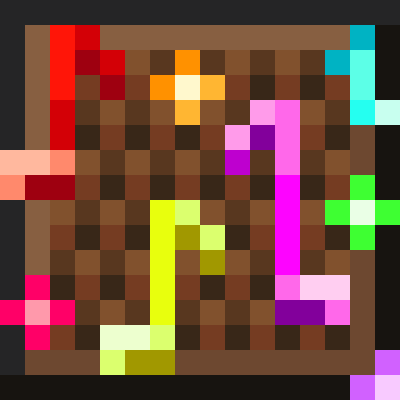
- Swap vanilla disc textures with your own textures (.png) file.
- Organized location: (disc_texture/disc_name.png).
- Works perfectly with Minecraft pixel ratios (i.e. 16x16, 32x32, 64x64).
- Survival/achievement-friendly — no behavior packs required.
3. Custom Disc Names - Optional
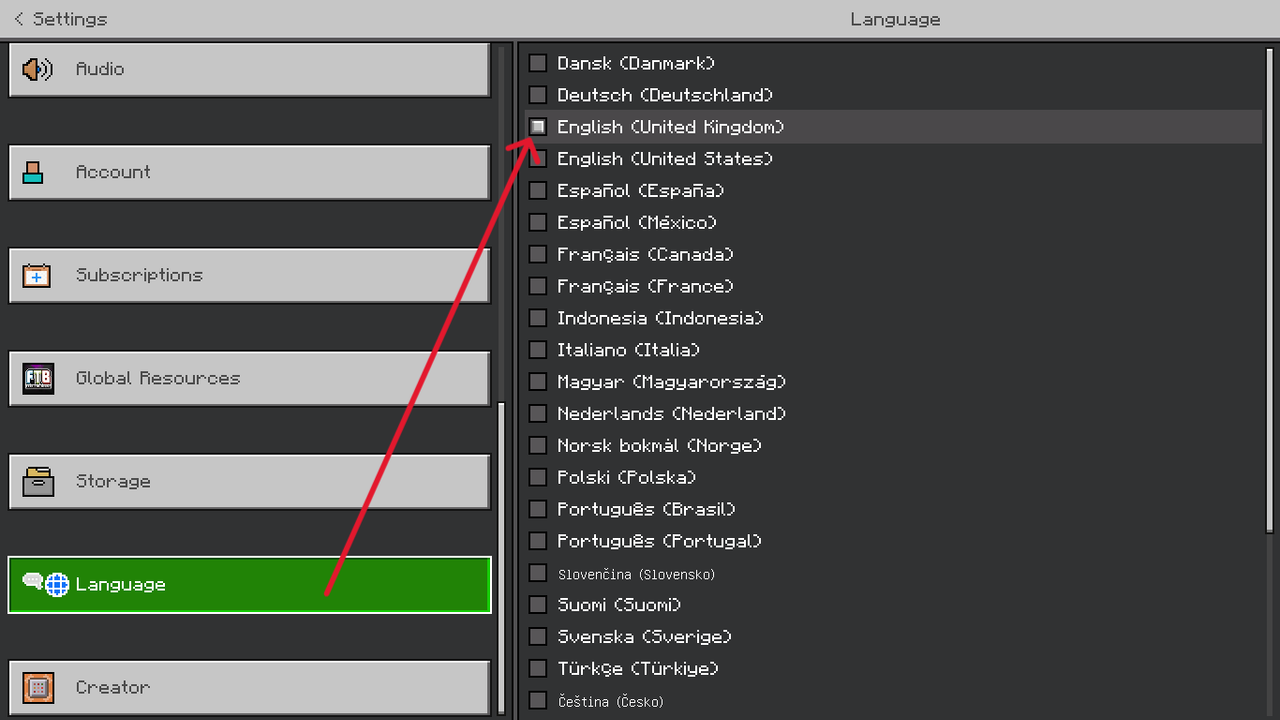
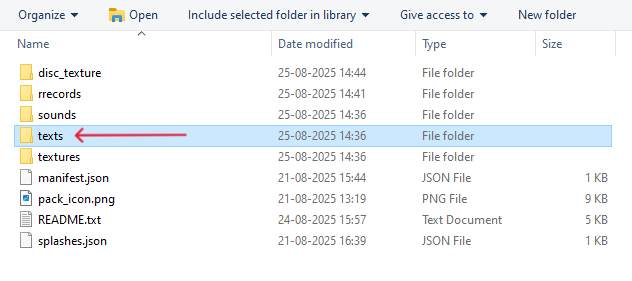
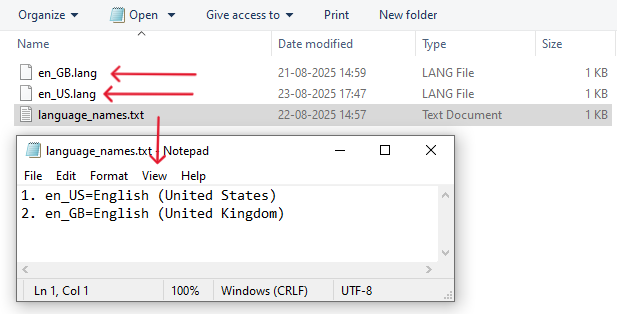
- Add unique disc names via texts/en_US.lang (or en_GB.lang) i.e. 1. en_US=English (United States) 2. en_GB=English (United Kingdom).
- Supports color codes and formatting (bold, italic, etc.) learn about color coding HERE.
- Example: rename (item.record_11.desc=C418 - 11) to (item.record_11.desc=Rickroll) changes the Minecraft disc name C418 - 11 to Rickroll.
4. Additional Customization - Optional
- Set custom block distance inside which the disc is audible in your world.
- By changing the values in "max_distance" in "sounds/sound_definition.json" as high as desired the Block Distance can be changed (Minecraft has the distance set to 64 blocks the pack changes it to 512 i.e. 12 chunks you can change even more to listen across the world).
- Discs play across multiple chunks without interruption.
Note:
- Long Duration only supports on development_resource_pack for on device worlds.
- Only replaces vanilla discs; does not add new items.
- Works on Bedrock Edition; tested for current versions.
- Optional Features are really optional :)
- Ensure that you follow the right process given below to avoid failures.
Detailed explanation:
Requirement:
Android: Default file manager (or else ZArchiever) and text editor (like QuickEdit) for Optional Features.
Windows: Default File Explorer is enough and Notepad for Optional Features. Ensure that in the File Explorer File Name Extension option is checked on the menu bar>view option>right top side>File Name Extension.
Finally download the Custom Music Disc pack to proceed further.
Locating the files and Decompressing Them:
- Look for the Downloaded file (CustomMusicDisc.mcpack). Usually it is located in Downloads folder for all devices.
- Now that you found the pack rename it and change the extension (from .mcpack) of file to .zip and decompress it.
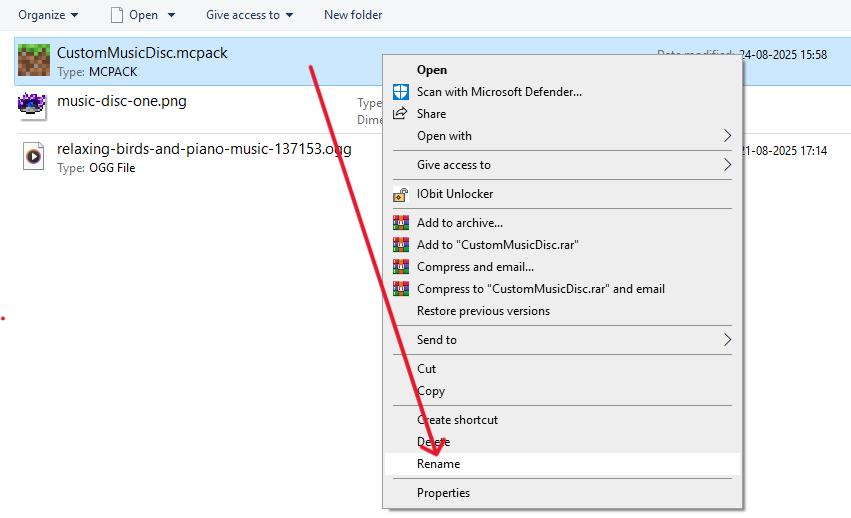
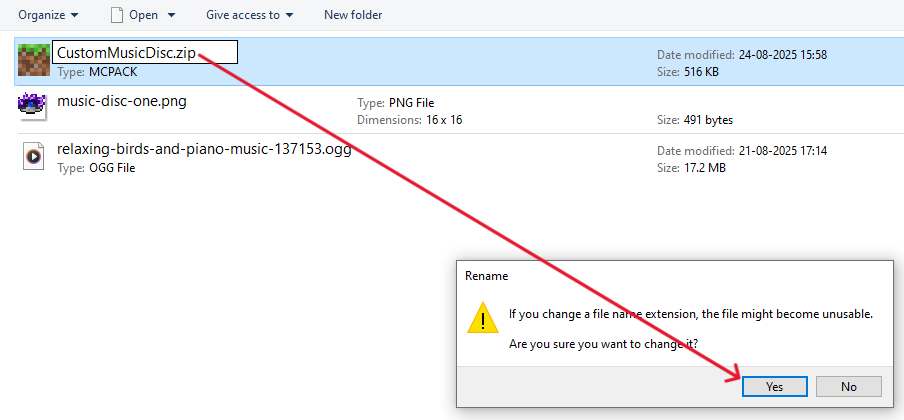
- After decompressing you will have a main folder named CustomMusicDisc with many other folders inside, we only have to work with the /rrecords folder (Unless you also want the optional features).
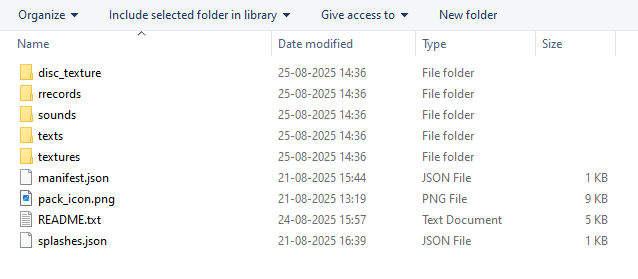
Adding the Custom Music:
- Get yourself a Custom music that is a .ogg audio type file don't worry if you have any normal audio extension just try online tools that convert .mp3 to .ogg or any audio type to .ogg then download the converted .ogg
- Now that you have a correct audio type rename it to the disc that you want to replace with.
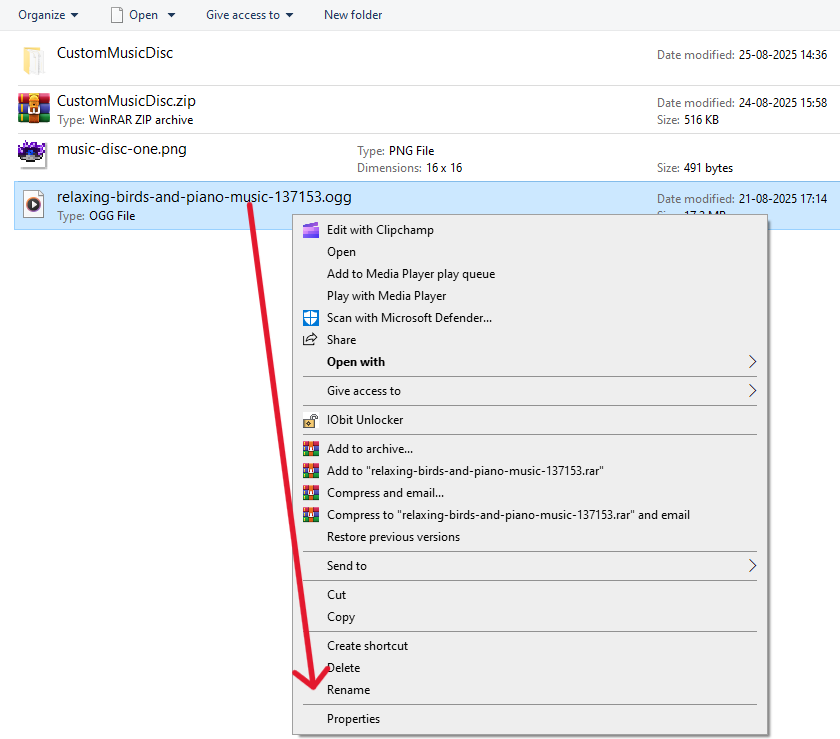
- Delete the vanilla version of record from pack.
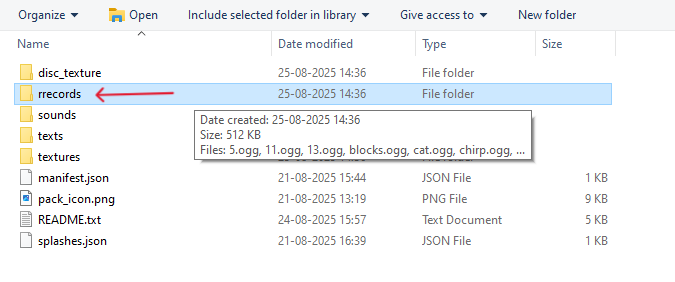
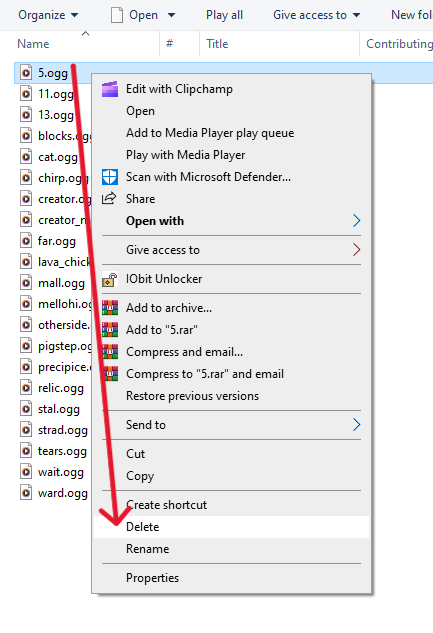
- Copy and paste it inside Custom_Music_Disc/rrecords/your.ogg.
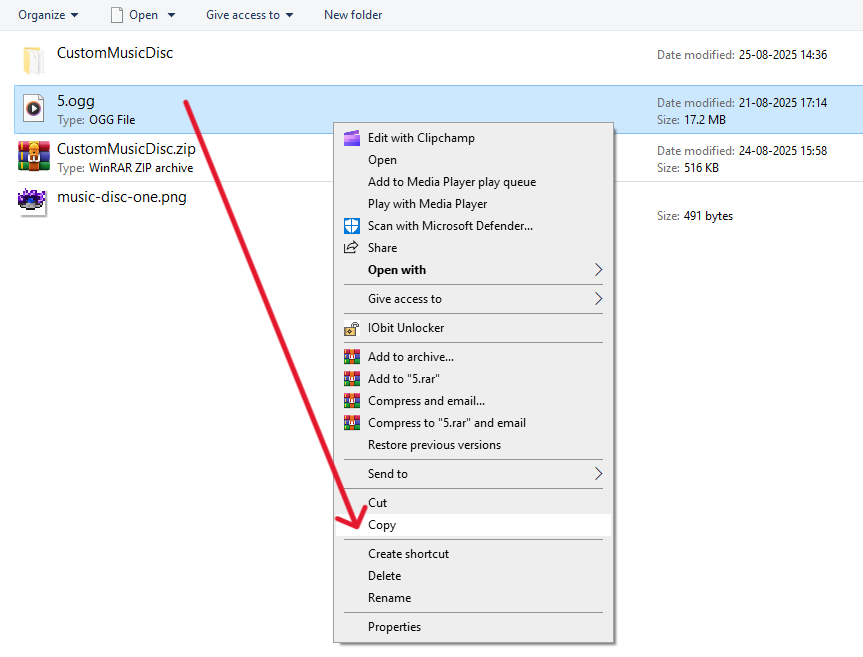
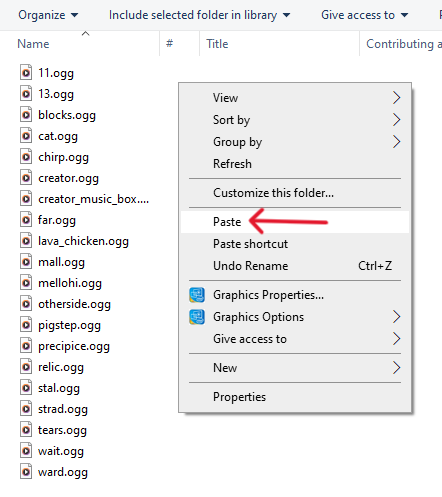
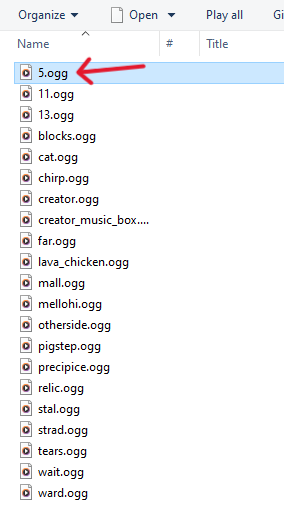
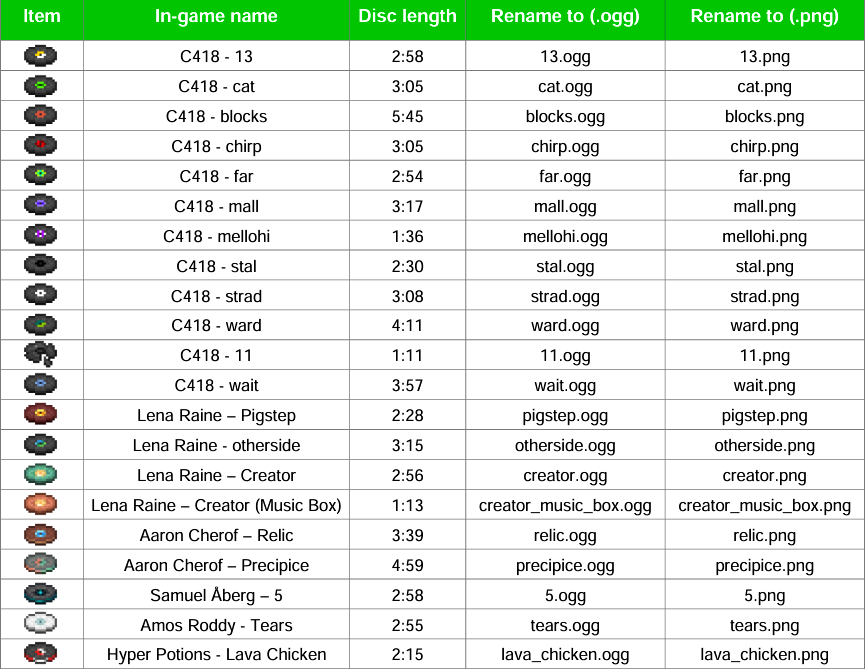
- Double check your renamed audio file with the Renaming Table.
Note:
- If you only want a Particular disc to have Custom Music and others to have Default Minecraft Music then After pasting the required music file with correct name delete other music files.
- Remember The long Music Only supports on development_resource_pack for on device worlds Check Installation Process to make sure How to install.
Change Disc Texture - Optional
- Get yourself a disc texture you want .
- Rename it with one of the Minecraft disc as the name is suggested in the Renaming Table.
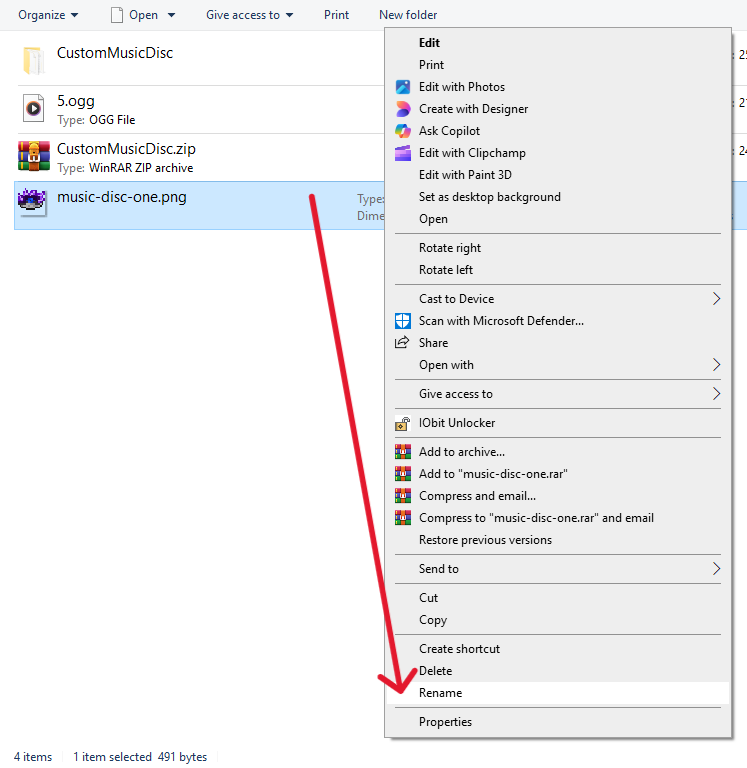
- Delete The Default Minecraft version Texture.
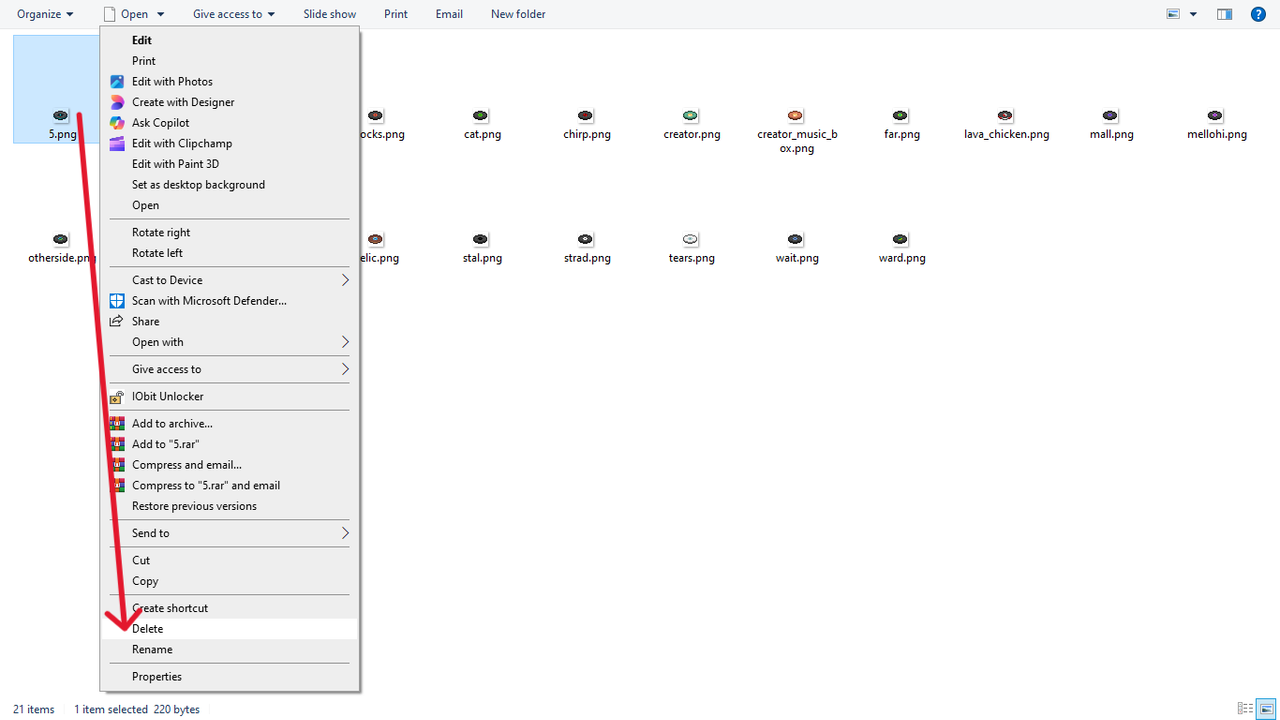
- Copy and paste the texture into the /disc_texture folder.
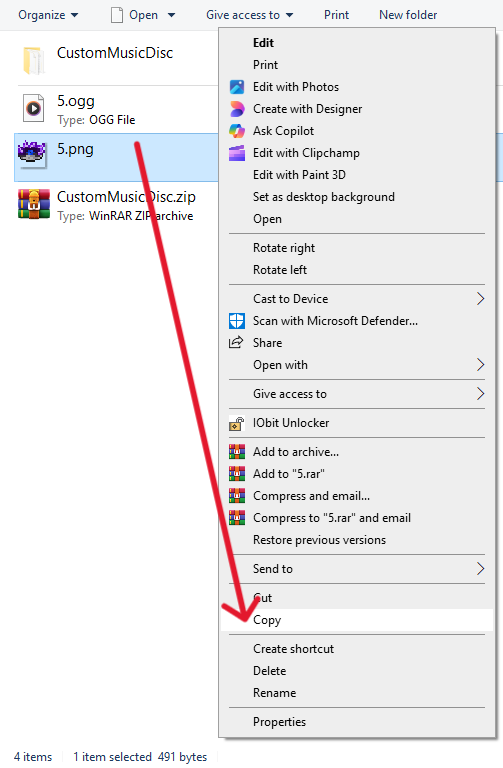
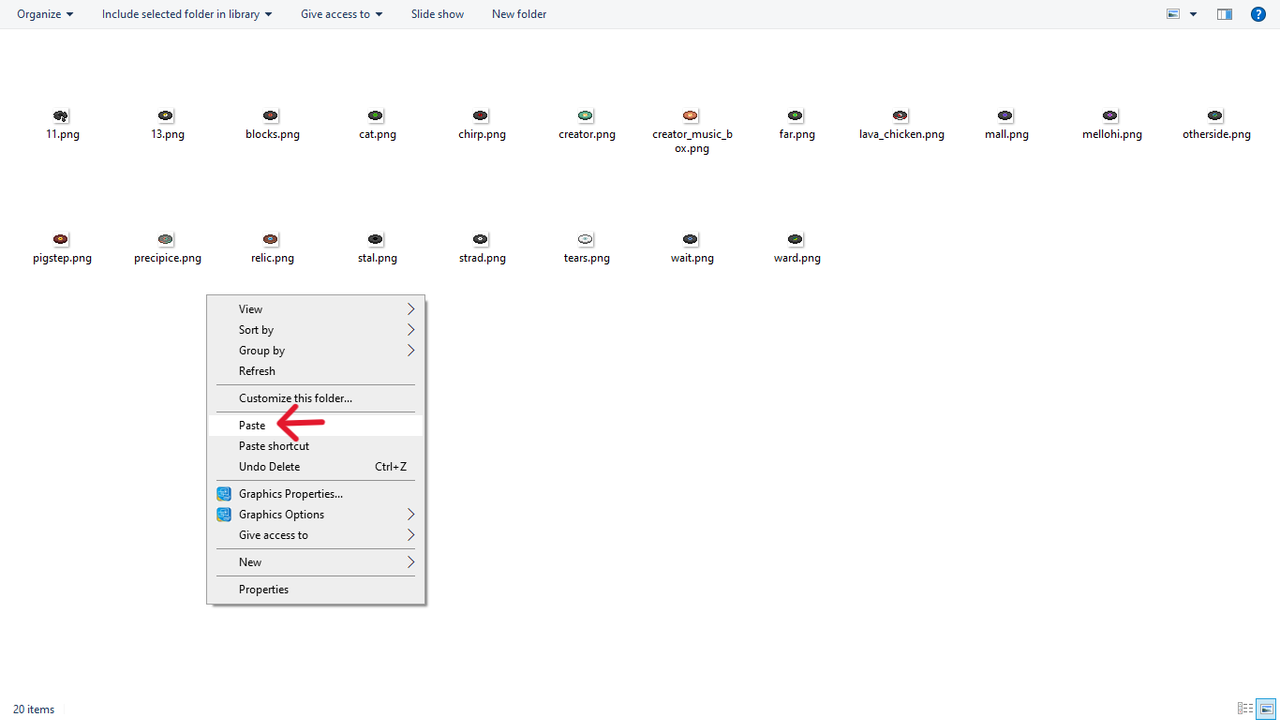
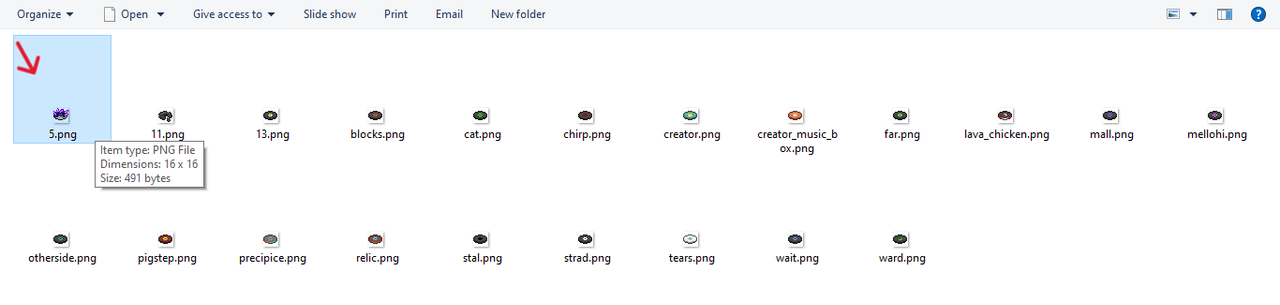
Rename Disc Name - Optional
- Check which language your game uses from the game settings.
- Open the /texts folder and open the .lang file with your text editor or notepad if you are on windows.
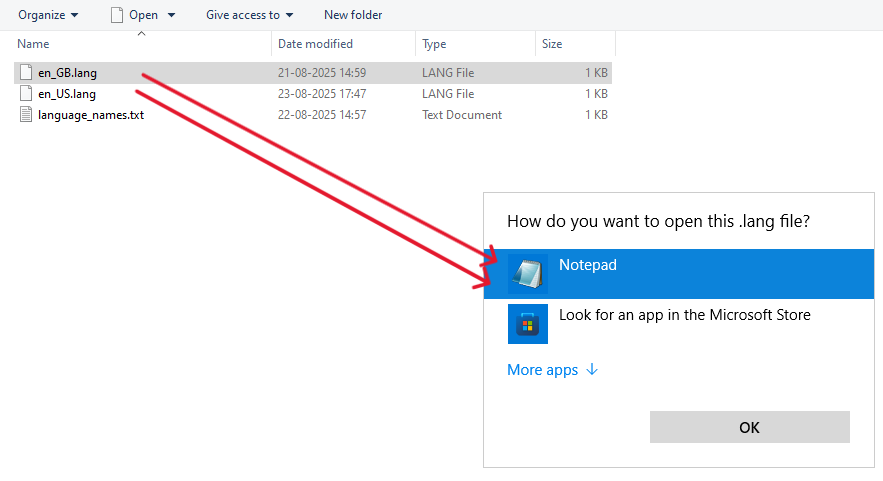
- Change name of the disc that you want a custom name for.
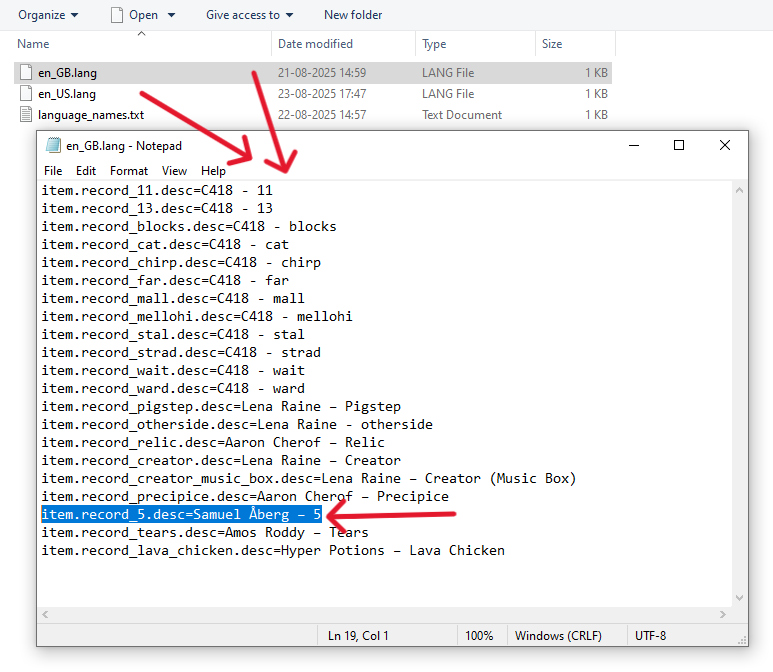
- To change simply remove anything thats after the = sign for your disc then delete the usual name and retype the name you want.
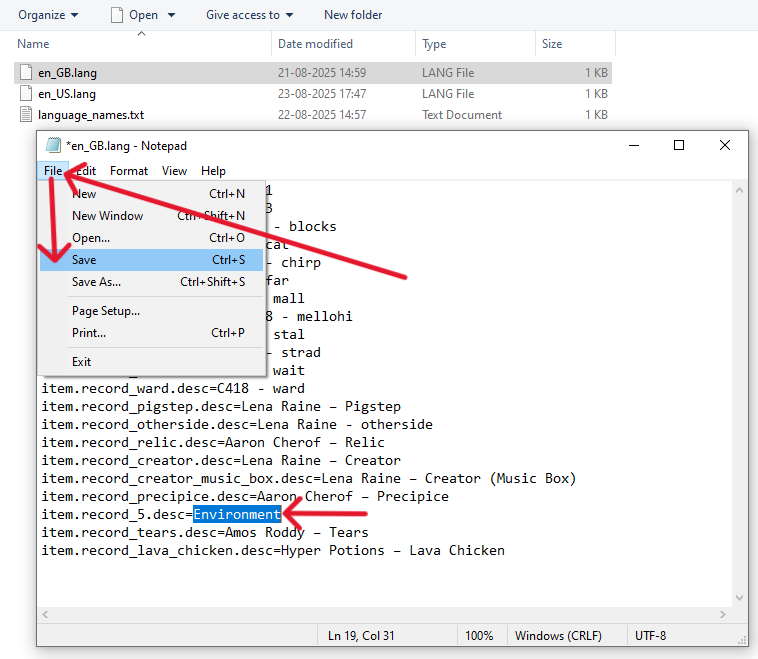
Note: make sure to leave no spaces after the = or before the name, make sure you didn't change anything except the name.
Advanced Settings In suonds/sound_definitions.json - Optional
- stream: true → streams the file from disk (use for long tracks). Prevents memory-based cutoff.
- load_on_low_memory: true → forces load on low-memory devices.
- max_distance → how far the sound travels (blocks).
- volume → loudness multiplier (1.0 default). Too high can distort.
- pitch → playback pitch (1.0 normal).
Renaming Table
Final Pack Structure
CustomMusicDisc
├─ disc_texture
│ ├─ 13.png
│ ├─ cat.png
│ └─ lava_chicken.png
├─ rrecords
│ ├─ 13.ogg
│ ├─ cat.ogg
│ └─ lava_chicken.ogg
├─ sounds
│ └─ sound_definitions.json
├─ texts
│ └─ en_US.lang
│ └─ en_GB.lang
├─ textures
│ └─ item_texture.json
├─ manifest.json
├─ pack_icon.png
├─ README.txt
└─ splashes.json
Quick Checks For Your Pack:
- Audio files must be in .ogg (.mp3 or any other wont work).
- File names are case-sensitive and should be lowercase with no spaces or use _ for spaces and with correct name as the same that is given in the table.
- Textures should be .png and ideally use power-of-two sizes (16×16, 32×32, 64×64, 128×128).
📂 Installation
IF USING NORMAL DURATION ACORDING TO ORIGINAL DISC
- Now that you done everything compress the contents of the pack folder into a single ZIP and rename extension to .mcpack.
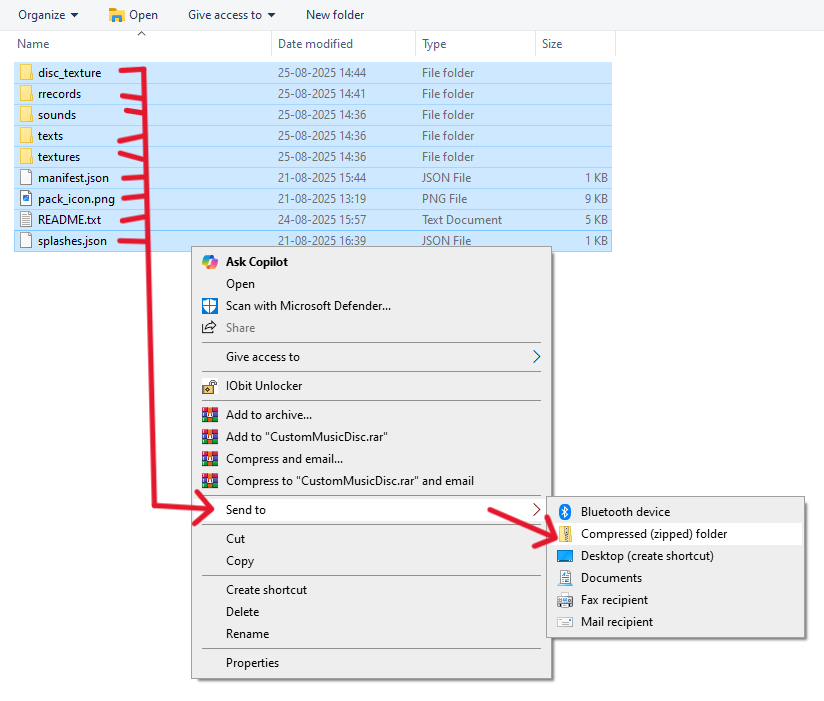
- Compress folder.
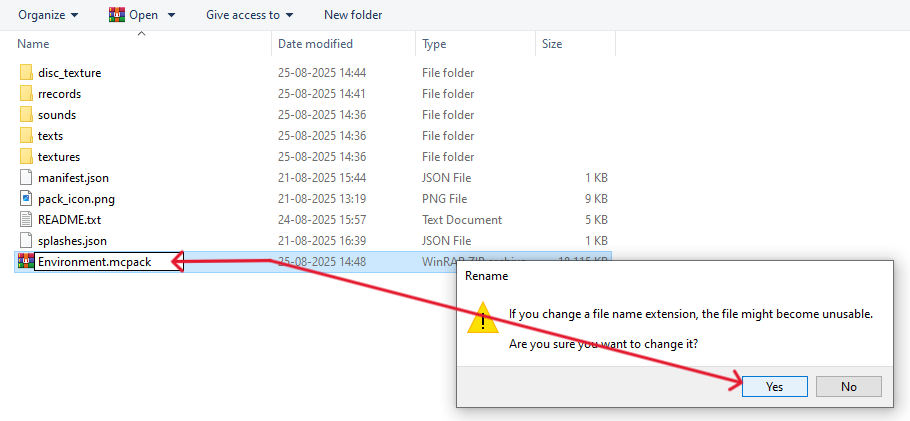
- Rename .zip → .mcpack
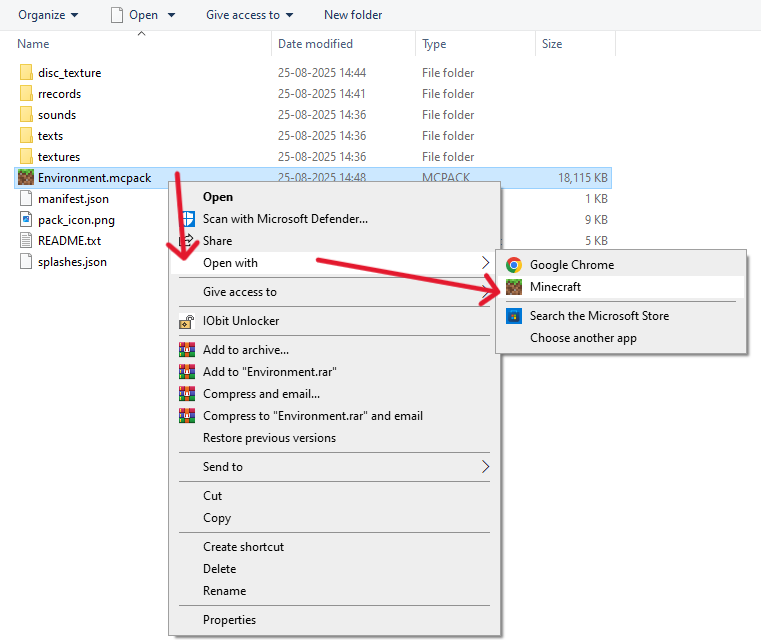
- Double-click .mcpack to import into Minecraft. Open with Minecraft on Mobile.
IF USING EXTENDED DISC
- Copy your main folder i.e. CustomMusicDisc.
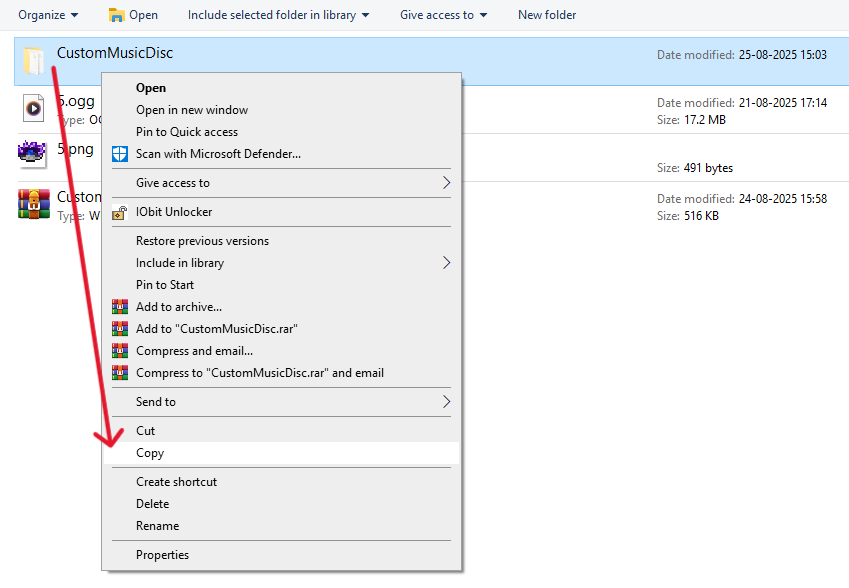
- Go to the Folder path on Windows: C:\Users\YourUser\AppData\Local\Packages\Microsoft.MinecraftUWP_8wekyb3d8bbwe\LocalState\games\com.mojang\development_resource_packs.
- Go to the Folder path on Android: Android/data/com.mojang.minecraftpe/files/games/com.mojang/development_resource_packs.
- Paste your Folder.
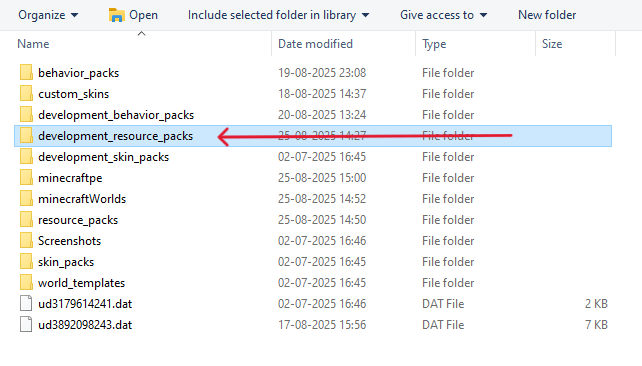
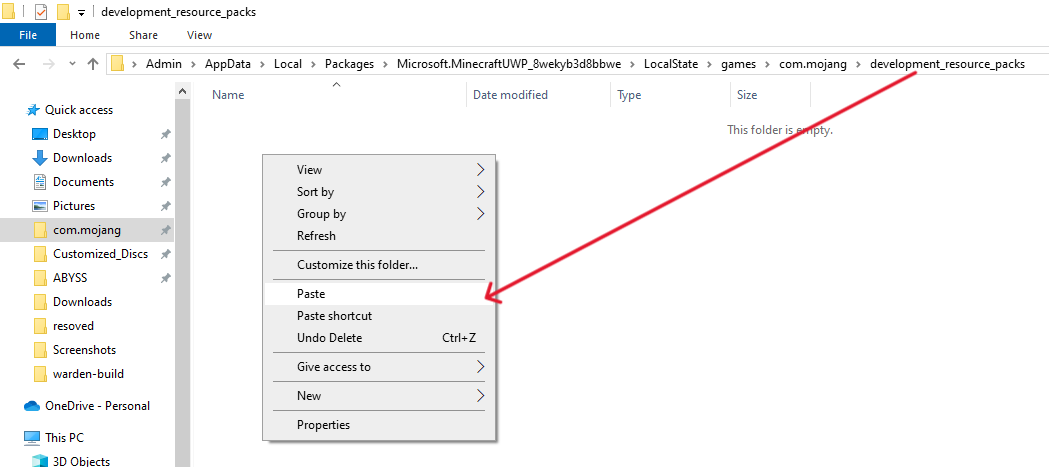
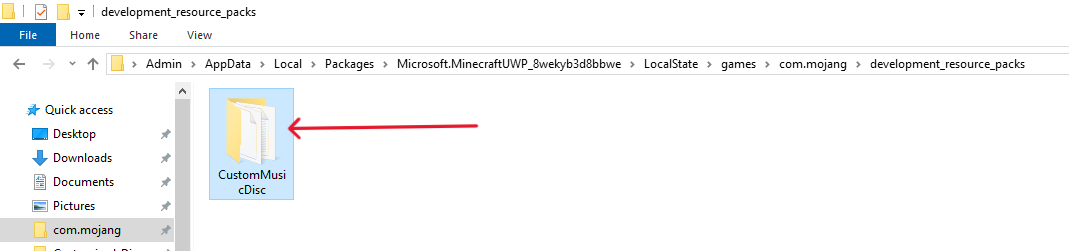
After Importing
- Activate it in the World or Global resource with Shared Pack Enabled.
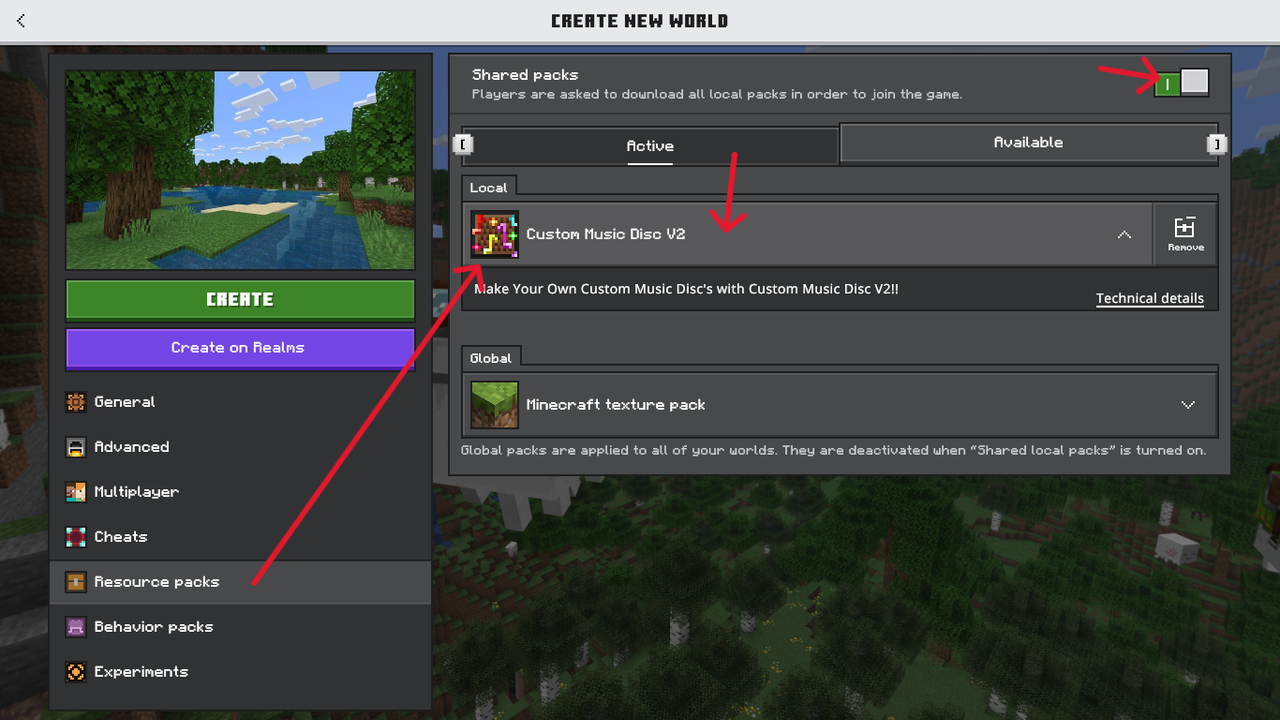
- Play Your Custom Disc and Enjoy!!
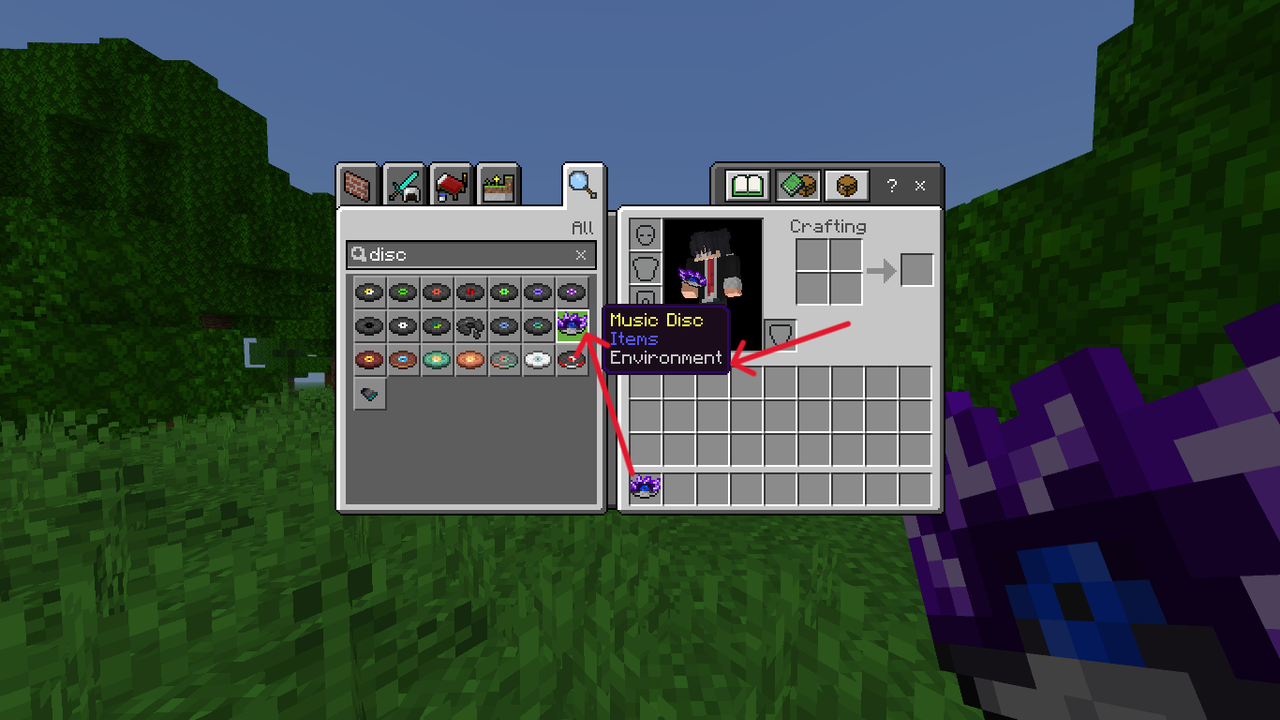
Tips & recommended audio export settings
- Use OGG format. Audacity: File → Export → Export as OGG.
- Recommended: 44100 Hz, bitrate ~128–192 kbps. Stereo is fine it doesn't affect.
- If a track cuts or stutters: re-encode with lower bitrate or shorter length for testing.
- Keep file size reasonable for mobile (very large files may load slowly or strain low-end devices).
Texture tips
- Use power-of-two image sizes (16, 32, 64, 128...).
- Item icons: 16×16 or 32×32 look best; keep the design centered and clear at small size.
- Name PNG files exactly as given in the Renaming Table.
Troubleshooting checklist
If something doesn’t work:
- File names mismatch — check for typos and case. Everything is case-sensitive.
- Crashes on mobile: audio files too large / high bitrate; try lower bitrate or shorter length.
- Wrong folder —Follow the exact path as described in the Detailed Explanation.
- Wrong format — audio must be .ogg; textures must be .png.
- Language edits not showing — make sure you edited the correct language file (en_US.lang vs en_GB.lang), then reload the resource pack.
If something still fails
Try sharing it in comments or contact me on discord @nextr01
📌 Frequently Asked Questions (FAQ)
Q1. Does this work on SMP with friends?
Yes. Everyone must have the resource pack installed and enabled, or the server/realm must have the pack applied.
Q2. Will this disable achievements?
No. This is only a resource pack — no behavior packs or code modifications — so achievements stay enabled.
Q3. Can I use my own songs?
Yes! Replace the .ogg files inside the pack with your songs and rename them according to the rename table provided.
Q4. Can I change disc names and textures?
Yes. You can edit the .lang file to rename discs and replace the .png texture files to match your theme.
Q5. Does this work on Java Edition?
No. This pack is made for Minecraft Bedrock Edition. Java Edition uses a different file structure.
Q6. Do I need mods or external apps?
No. The pack works directly in vanilla Bedrock once installed.
Q7. My song is too long and it doesn’t play fully, what should I do?
Minecraft Bedrock has a limit per disc (see the Disc Length Table). Longer tracks may cut off unless used in a development pack. To fix this, trim or compress your audio to fit the disc’s max length.
Q8. Can I share or remix this pack?
Yes, for personal use or private sharing. If you upload a public version, please give proper credit to the original project.
Q9. Why cant I listen to default discs of Minecraft?
Its becauce I am not allowed to provide Minecraft music due to copyright reasons. You can add it anyway using the youtube and downloading the audio from youtube and adding it to the pack.
🌟 Thank You!
Thanks a ton for even stopping by this page — you’re truly the best! 💖
Whether you download and use the pack or are just curious, Your support and interest means a lot.
Enjoy customizing your Minecraft experience. 💿✨
The Ultimate Guide to Custom Music Disc - Template
If you are exploring the vast world of Minecraft modifications, Custom Music Disc - Template by Nextr is a standout texture that deserves your attention. With over 15,056 downloads, it has become a staple for players looking to enhance their experience. As the creator describes it, this project is "Bring your own soundtrack to Minecraft — customize discs with your favorite music, names, and textures.". Whether you are a veteran builder constructing massive cities, or simply a casual player looking to upgrade your survival world, this guide will provide you with all the essential details on how Custom Music Disc - Template alters the game.
What Makes It Special?
Unlike standard textures that simply alter superficial elements, Custom Music Disc - Template introduces a wide array of visual and mechanical features designed to seamlessly blend into the vanilla aesthetic. Nextr has clearly spent significant time refining the project to ensure that every aspect feels polished and responsive for version 1.21.
Installation Guide
Getting Custom Music Disc - Template up and running is straightforward. Follow these step-by-step instructions:
- Verify Your Version: Ensure your Minecraft launcher is set to version 1.21.
- Install Mod Loader (if required): If this is a mod, download the compatible loader (Forge, Fabric, NeoForge).
- Download the File: Click the secure download button above to retrieve the official file from CurseForge.
- Move the File: Place the downloaded file into your `mods`, `shaderpacks`, or `resourcepacks` folder depending on the texture type.
- Launch and Enjoy: Open Minecraft, navigate to the respective settings menu, and activate Custom Music Disc - Template.
Compatibility & Performance
Compatibility is robust. Custom Music Disc - Template is designed specifically for version 1.21, taking full advantage of the latest engine optimizations. During typical gameplay, this addition maintains a stable frame rate, though lower-end laptops might experience slight stuttering. We recommend pairing this with performance boosters like Sodium or Iris to guarantee a silky-smooth experience.