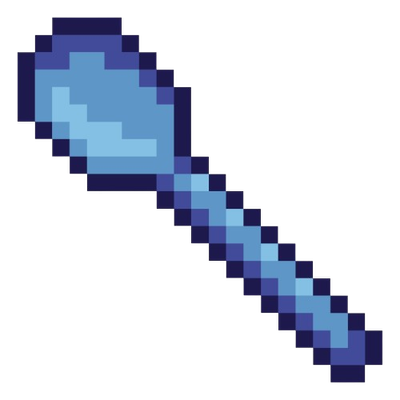
Why Sword to spoon is a top-tier texture pack mod for Minecraft 1.21
Developed by the talented creator xi0nlesgo, Sword to spoon stands out as a highly recommended selection for your Minecraft client. It is fully optimized, compatibility-tested, and brings a major upgrade to the gameplay experience in Minecraft version 1.21.
⚙️ Quick Resource Specs
| Mod Creator | xi0nlesgo |
| Latest Version | 1.21 |
| Supported Game Versions | Minecraft 1.21+ |
| File Size | 24.17 KB |
| Last Updated | |
| Total Downloads | 255 downloads |
Sword To Spoon
Transform your swords into magical weapons of power!
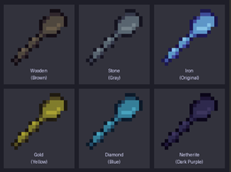
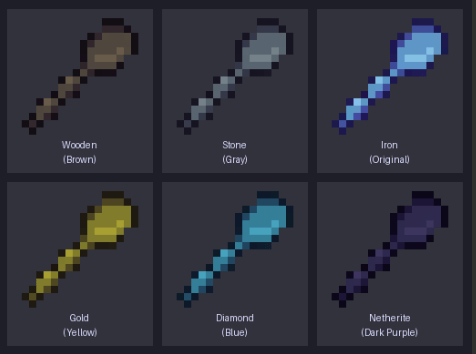
This resource pack replaces all default sword textures with a stunning pixel-art magic axe, each uniquely colored to match its tier. Every sword feels like a legendary artifact pulled from another dimension.
🗡️ Sword Variants:
- Wooden Sword — A rustic brown axe, forged from ancient enchanted wood
- Stone Sword — A sturdy gray axe, carved from the depths of the earth
- Iron Sword — The original magic axe in its pure mystic blue form
- Golden Sword — A radiant golden axe, shimmering with divine energy
- Diamond Sword — A brilliant bright-blue axe, crackling with frost and arcane power
- Netherite Sword — A dark purple-black axe, corrupted by the fires of the Nether
The Ultimate Guide to Sword to spoon
If you are exploring the vast world of Minecraft modifications, Sword to spoon by xi0nlesgo is a standout texture that deserves your attention. With over 255 downloads, it has become a staple for players looking to enhance their experience. As the creator describes it, this project is "Sword To Spoon Replaces all sword textures with a magical pixel-art axe. Each tier has its own color — brown, gray, blue, gold, bright blue, and dark purple. Compatible with Minecraft Bedrock Edition.". Whether you are a veteran builder constructing massive cities, or simply a casual player looking to upgrade your survival world, this guide will provide you with all the essential details on how Sword to spoon alters the game.
What Makes It Special?
Unlike standard textures that simply alter superficial elements, Sword to spoon introduces a wide array of visual and mechanical features designed to seamlessly blend into the vanilla aesthetic. xi0nlesgo has clearly spent significant time refining the project to ensure that every aspect feels polished and responsive for version 1.21.
Installation Guide
Getting Sword to spoon up and running is straightforward. Follow these step-by-step instructions:
- Verify Your Version: Ensure your Minecraft launcher is set to version 1.21.
- Install Mod Loader (if required): If this is a mod, download the compatible loader (Forge, Fabric, NeoForge).
- Download the File: Click the secure download button above to retrieve the official file from CurseForge.
- Move the File: Place the downloaded file into your `mods`, `shaderpacks`, or `resourcepacks` folder depending on the texture type.
- Launch and Enjoy: Open Minecraft, navigate to the respective settings menu, and activate Sword to spoon.
Compatibility & Performance
Compatibility is robust. Sword to spoon is designed specifically for version 1.21, taking full advantage of the latest engine optimizations. During typical gameplay, this addition maintains a stable frame rate, though lower-end laptops might experience slight stuttering. We recommend pairing this with performance boosters like Sodium or Iris to guarantee a silky-smooth experience.