Why sulfur skins is a top-tier texture pack mod for Minecraft 1.21
Developed by the talented creator Asterx, sulfur skins stands out as a highly recommended selection for your Minecraft client. It is fully optimized, compatibility-tested, and brings a major upgrade to the gameplay experience in Minecraft version 1.21.
⚙️ Quick Resource Specs
| Mod Creator | Asterx |
| Latest Version | 1.21 |
| Supported Game Versions | Minecraft 1.21+ |
| File Size | 181.56 KB |
| Last Updated | |
| Total Downloads | 9,132 downloads |
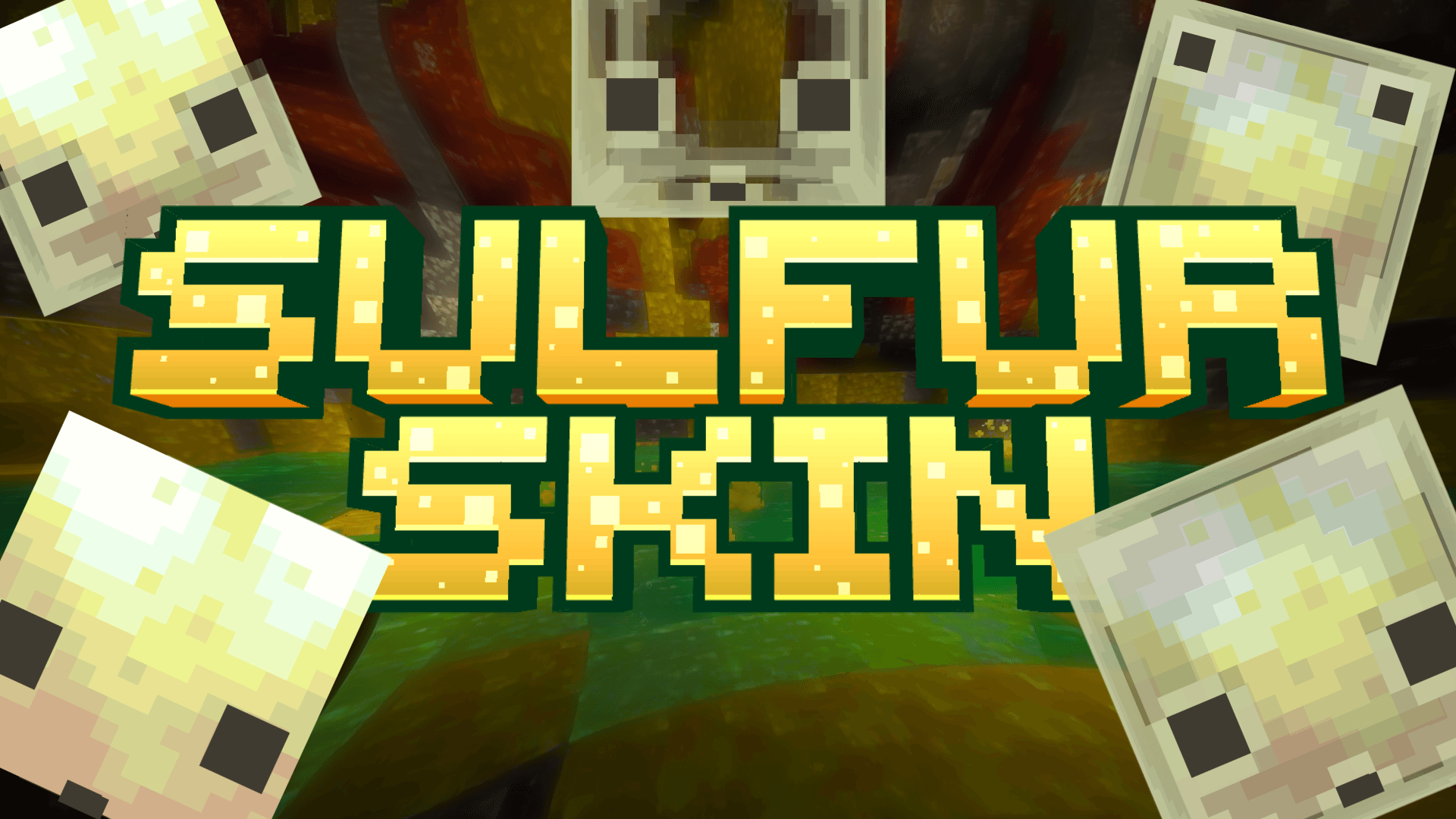
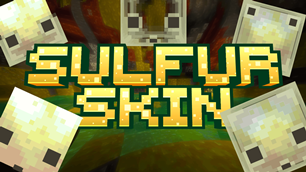
Disclaimer : this pack doesn't include sulfur cube mobonly work with new sulfur cube mob in minecraft beta 1.26.20.24
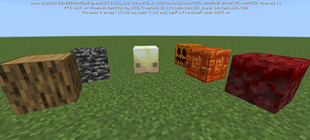
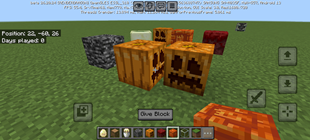
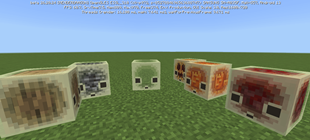
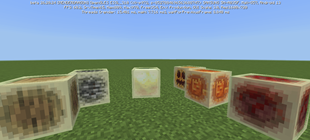
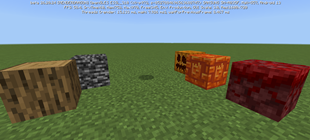
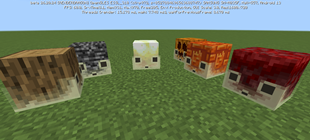
after looking at this new mob, i just thought that it's face covering some blocks, like carved pumpkin.
so, instead what if i move the eyes or maybe remove them, or makes the block inside them got bigger.
then here i am, these are what i got :p just wanna share maybe some of you will like it haha LoL
SUBPACKS
so, there's some subpacks for this
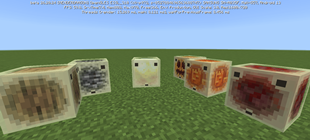
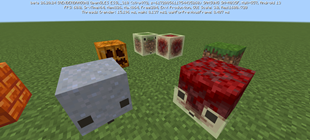
big itemall cube blocks will have the same size like the originaleyesonly showing their eyes and mouthhalfhalf of their head will melt because of acid water :pno facethis will make them looks like normal block, all side having the same textureno inneronly showing their outer layer, like they have no body, you can still place block inside themtransparentthey skin will be invisible, but you can still place block inside itupper eyesi just wanted to get rid of their eyes, but instead i make them looks ugly, they're funny XD
LIMITATION
◉ CONTENT LIMITATION
◉ YOU'RE ALLOWED TO
- Edit this pack for your private/personal use
- Make videos & media content with this pack as long as you leave a link to my CurseForge or MCPEDL page
- Distribute the pack using your own or new download link (this pack already using direct link that's safe)
◉ YOU'RE NOT ALLOWED TO
- Monetise the pack download. Doing so will result in a copyright takedown.
FEEDBACK & SUPPORT
if you have any issues with this pack, please consider to tell me either on web comment or my discord server here https://discord.gg/mdsM6W5jmg
it'll be very helpful reading all of your feedback, so i can be better and better next time.
You can also follow me on another social media here IG : 4sterx_ | YT : Asterx
F A Q
There's two type of settings in Minecraft
Game Settings :  && World settings :
in it there's a bunch of different type of mod (pack)
- Global Resources Pack (in game settings)

this will activate the pack across the whole game, in every world you in
only works for a Texture/Resources Pack
- Resources Pack (in every "world settings")

This will activate the pack only in a specific world you choose.
For Texture/Resources Pack, that'll change how item, entity, player or game looks, like texture, animation or UI
- Behavior Pack (in every "world settings")

This will activate the pack only in a specific world you choose.
For Addon/Behavior Pack, that'll change how a mob, item, entity or player behave. How the game works
what's and where's Pack Settings?
it's simply a "pack setting". in it there's a bunch of description and settings about the pack.
you can find it in game settings or world settings
- but before that, you have to activate or add the pack.
- In older IU, click the pack, a new option will appear

- In the newest UI, there's activate button on the right
- In older IU, click the pack, a new option will appear
- after you've activate the pack, click it. new option will appear
- at the bottom right there's an settings icon
- Old UI will look like this

- New UI will look like this

- Old UI will look like this
- there you have it :)
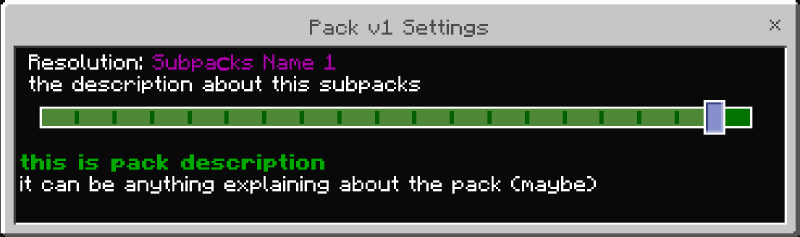
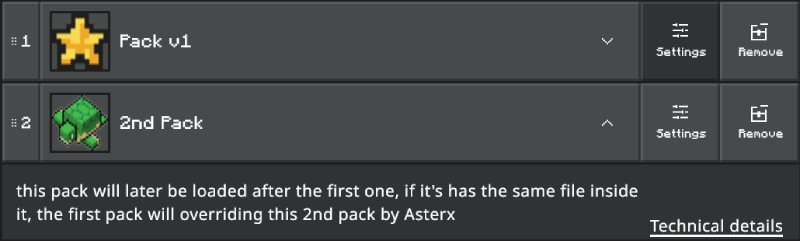
what's and where's Subpacks?
subpacks are the settings of the pack itself, it's the options we can choose to change the modification of the pack. where's that? you can read about pack settings above.
If you have entered packs settings. There's a slider at the top.
It's called as "Subpacks"
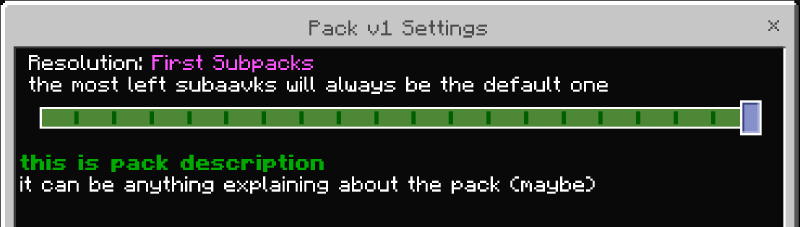
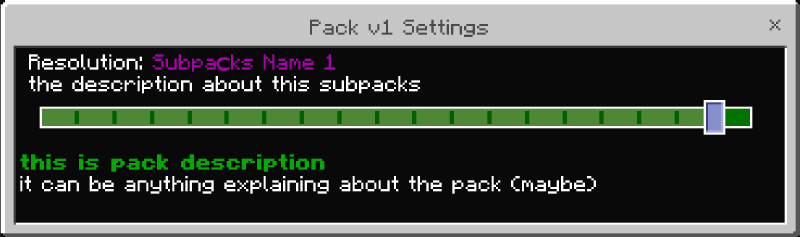

The Ultimate Guide to sulfur skins
If you are exploring the vast world of Minecraft modifications, sulfur skins by Asterx is a standout texture that deserves your attention. With over 9,132 downloads, it has become a staple for players looking to enhance their experience. As the creator describes it, this project is "sulfur skins variant". Whether you are a veteran builder constructing massive cities, or simply a casual player looking to upgrade your survival world, this guide will provide you with all the essential details on how sulfur skins alters the game.
What Makes It Special?
Unlike standard textures that simply alter superficial elements, sulfur skins introduces a wide array of visual and mechanical features designed to seamlessly blend into the vanilla aesthetic. Asterx has clearly spent significant time refining the project to ensure that every aspect feels polished and responsive for version 1.21.
Installation Guide
Getting sulfur skins up and running is straightforward. Follow these step-by-step instructions:
- Verify Your Version: Ensure your Minecraft launcher is set to version 1.21.
- Install Mod Loader (if required): If this is a mod, download the compatible loader (Forge, Fabric, NeoForge).
- Download the File: Click the secure download button above to retrieve the official file from CurseForge.
- Move the File: Place the downloaded file into your `mods`, `shaderpacks`, or `resourcepacks` folder depending on the texture type.
- Launch and Enjoy: Open Minecraft, navigate to the respective settings menu, and activate sulfur skins.
Compatibility & Performance
Compatibility is robust. sulfur skins is designed specifically for version 1.21, taking full advantage of the latest engine optimizations. During typical gameplay, this addition maintains a stable frame rate, though lower-end laptops might experience slight stuttering. We recommend pairing this with performance boosters like Sodium or Iris to guarantee a silky-smooth experience.