Why Transparent ui by baku is a top-tier texture pack mod for Minecraft 1.21
Developed by the talented creator BAKUTHEBUILDER, Transparent ui by baku stands out as a highly recommended selection for your Minecraft client. It is fully optimized, compatibility-tested, and brings a major upgrade to the gameplay experience in Minecraft version 1.21.
⚙️ Quick Resource Specs
| Mod Creator | BAKUTHEBUILDER |
| Latest Version | 1.21 |
| Supported Game Versions | Minecraft 1.21+ |
| File Size | 43.68 KB |
| Last Updated | |
| Total Downloads | 3,805 downloads |
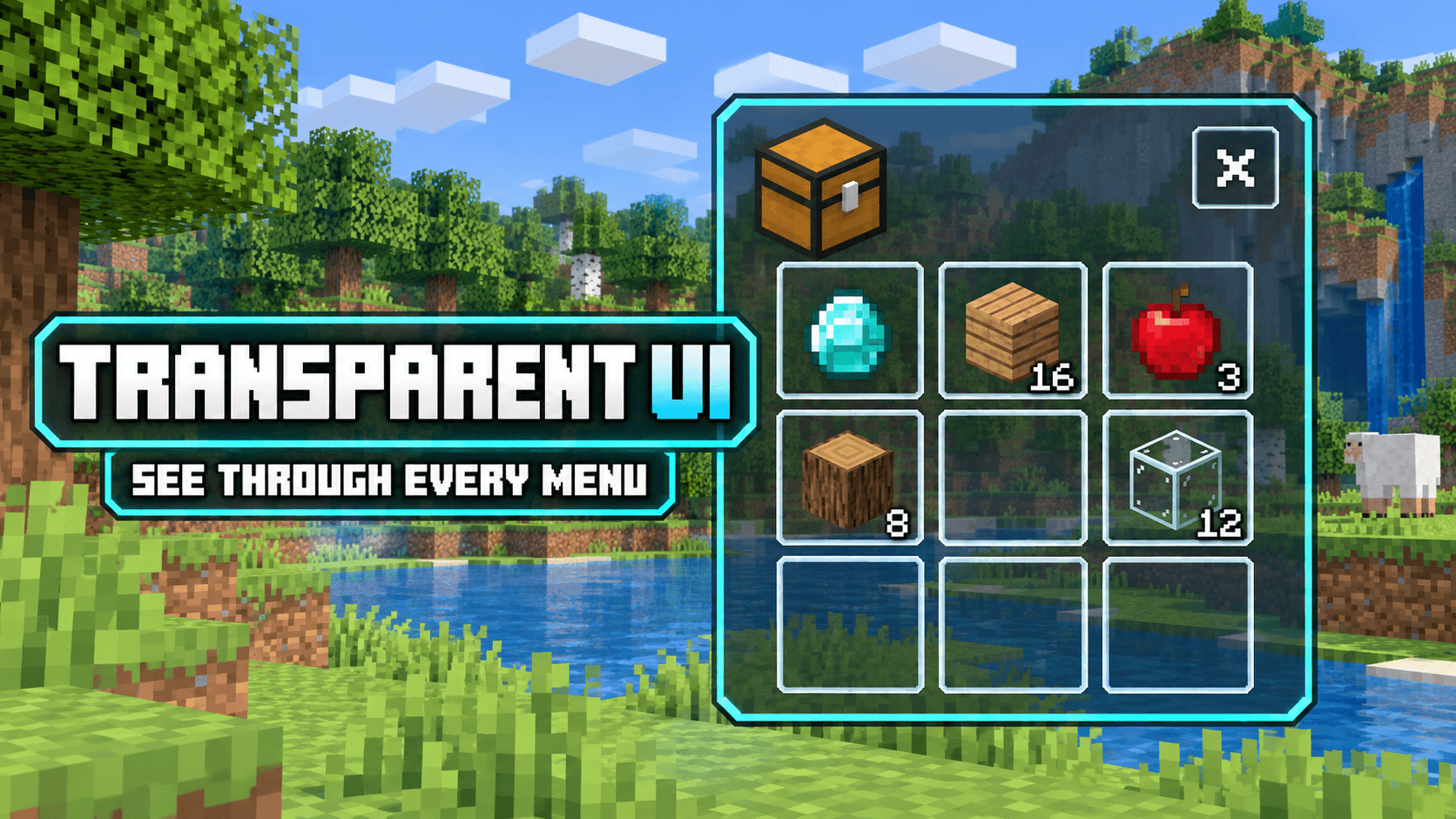
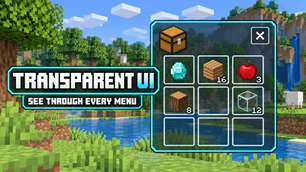
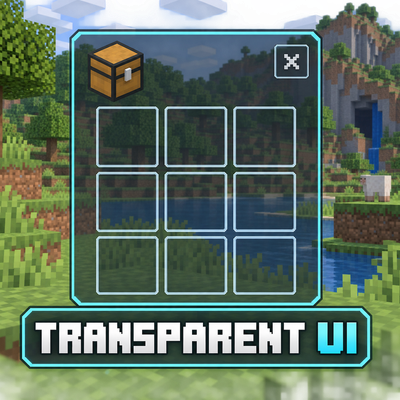
TRANSPARENT UI
SEE THROUGH EVERY MENU
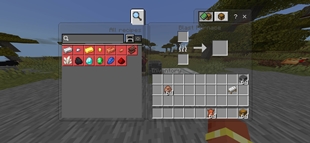
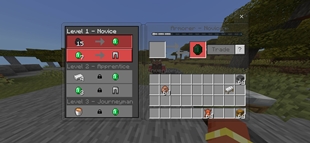
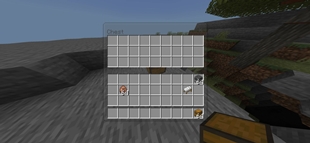
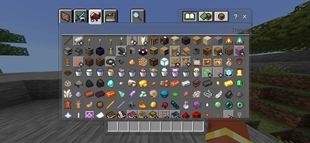
Transparent UI is a clean Minecraft Bedrock resource pack that makes inventory and container menus transparent, allowing you to see the world behind the interface.
◆ Features
- Transparent chest and inventory interfaces
- Transparent villager trading screen
- Supports crafting tables and recipe menus
- Works with furnaces, smokers and blast furnaces
- Supports anvils, enchanting tables and grindstones
- Compatible with smithing tables, looms and other containers
- Clearly visible slots, items and controls
- Clean design without excessive effects
◆ Why Use This Pack?
Normal menus completely cover a large part of your screen. This pack reduces the opacity of UI panels so you can monitor your surroundings while managing items, opening chests, crafting equipment or trading with villagers.
◆ Compatibility
Edition: Minecraft Bedrock Edition
Recommended Version: 26.40
Pack Type: Resource Pack
Experimental Features: Not Required
◆ Installation
- Download the .mcpack file.
- Open the downloaded file using Minecraft.
- Wait for the import confirmation.
- Open your world settings and activate the pack under Resource Packs.
- If another UI pack is active, place Transparent UI above it.
◆ Important Note
Other resource packs that modify the Minecraft interface may conflict with this pack. For the best experience, keep Transparent UI at the top of your active resource-pack list.
◆ Credits
Pack Creator, Design and Development:
BAKU
All credits and ownership belong to Baku.
Enjoy a cleaner interface without losing sight of your Minecraft world!
The Ultimate Guide to Transparent ui by baku
If you are exploring the vast world of Minecraft modifications, Transparent ui by baku by BAKUTHEBUILDER is a standout texture that deserves your attention. With over 3,805 downloads, it has become a staple for players looking to enhance their experience. As the creator describes it, this project is "Baku Transparent UI makes chest, inventory, trading, crafting, furnace, anvil and other menus transparent keeping the Minecraft world visible while slots, gear and controls stay clear and easy to use.". Whether you are a veteran builder constructing massive cities, or simply a casual player looking to upgrade your survival world, this guide will provide you with all the essential details on how Transparent ui by baku alters the game.
What Makes It Special?
Unlike standard textures that simply alter superficial elements, Transparent ui by baku introduces a wide array of visual and mechanical features designed to seamlessly blend into the vanilla aesthetic. BAKUTHEBUILDER has clearly spent significant time refining the project to ensure that every aspect feels polished and responsive for version 1.21.
Installation Guide
Getting Transparent ui by baku up and running is straightforward. Follow these step-by-step instructions:
- Verify Your Version: Ensure your Minecraft launcher is set to version 1.21.
- Install Mod Loader (if required): If this is a mod, download the compatible loader (Forge, Fabric, NeoForge).
- Download the File: Click the secure download button above to retrieve the official file from CurseForge.
- Move the File: Place the downloaded file into your `mods`, `shaderpacks`, or `resourcepacks` folder depending on the texture type.
- Launch and Enjoy: Open Minecraft, navigate to the respective settings menu, and activate Transparent ui by baku.
Compatibility & Performance
Compatibility is robust. Transparent ui by baku is designed specifically for version 1.21, taking full advantage of the latest engine optimizations. During typical gameplay, this addition maintains a stable frame rate, though lower-end laptops might experience slight stuttering. We recommend pairing this with performance boosters like Sodium or Iris to guarantee a silky-smooth experience.