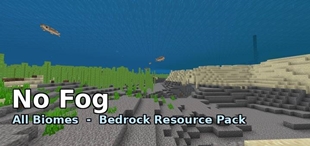
Why No Fog - All Biomes is a top-tier texture pack mod for Minecraft 1.21.132
Developed by the talented creator KENPITU, No Fog - All Biomes stands out as a highly recommended selection for your Minecraft client. It is fully optimized, compatibility-tested, and brings a major upgrade to the gameplay experience in Minecraft version 1.21.132.
⚙️ Quick Resource Specs
| Mod Creator | KENPITU |
| Latest Version | 1.21.132 |
| Supported Game Versions | 1.21.132, 1.21.131, 1.21.130, 1.21.124, 1.21.123 |
| File Size | 30.23 KB |
| Last Updated | |
| Total Downloads | 3,908 downloads |
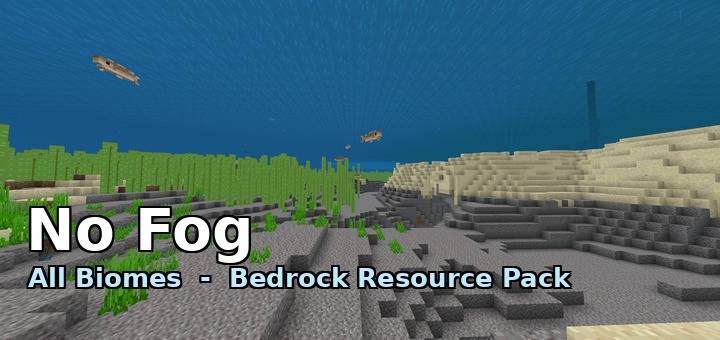
Removes Minecraft's fog - water, air, weather, lava and powder snow - in every biome.
Four levels
Pick one from the dropdown in the pack settings. They are listed in this order, and the last one is selected automatically, so most players never need to open the dropdown at all.
Water only.
All, Nether keeps fog.
All except lava.
All. This is the recommended one and the default.
What changes
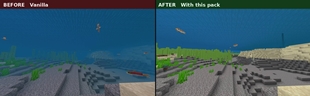
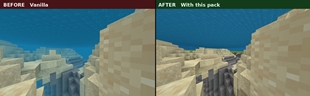
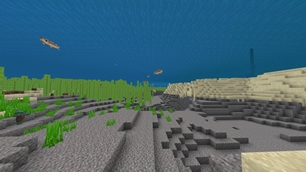
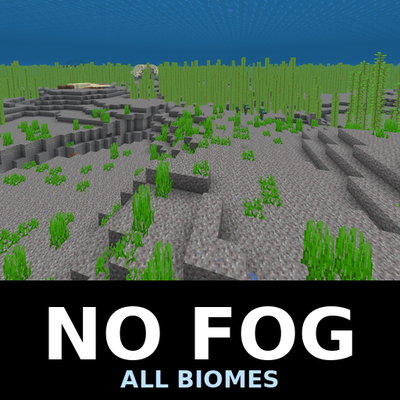
Water. Vanilla fog ends at 60 blocks. Removed, so you can see across the sea floor.
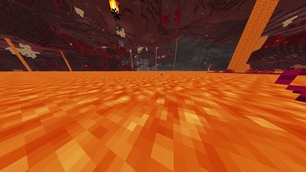
Lava. Vanilla fog ends at 0.64 blocks. Removed, so you can look at a distant wall while swimming in a lava sea.
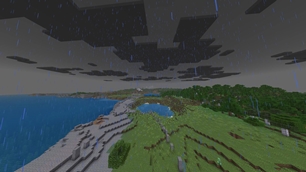
Weather. Vanilla fog runs from 23 to 70 percent of your render distance. Removed, so rain no longer closes in your view.
Air. The distance haze is removed.
Powder snow. Vanilla fog ends 2 blocks ahead. Removed.
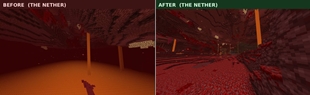
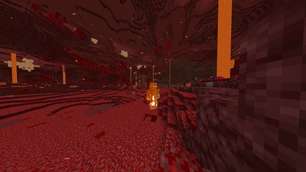
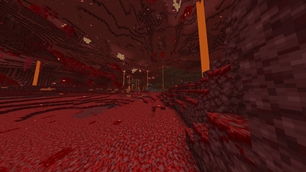
Nether. Vanilla air fog there is only 15 to 20 blocks, so this is the biggest change of all. Choose "All, Nether keeps fog" if you want to keep that closed-in atmosphere.
Vibrant Visuals
Tested with Vibrant Visuals enabled. Water, lava and the Nether are cleared exactly the same as without it.
One thing this pack cannot touch: Vibrant Visuals has its own volumetric fog, the hazy light shafts around light sources. That is a separate system from biome fog, so no resource pack can change it. It has its own toggle in the video settings if you don't want it.
Vibrant Visuals also uses its own render distance slider, so how far you can see is capped by that rather than by this pack.
About the comparison screenshots
Vanilla water fog is not constant. Right after you dive it sits at about 15 blocks, then it opens up over roughly 30 seconds and settles at 60. The before shots on this page were taken after it had fully settled. That is the fairest comparison, not the murkiest possible frame.
Important: put this pack at the top of your active list
This pack replaces the biome fog definitions, and only the topmost pack that does so is used. If another pack sits above this one, this one does nothing.
Notes
Resource pack only. No behaviour pack, no scripts, no commands. Achievements are unaffected.
Fog is not render distance. You still only see as far as your render distance setting allows. On a server, that server's render distance still applies.
Servers that use the /fog command will override this pack, because the command layer takes priority.
Removing weather fog is a real visibility advantage in PvP. Check your server or tournament rules.
This is not an X-ray. Block rendering is untouched, so hidden blocks stay hidden. Lava looks completely normal from the outside and only turns clear once the camera is inside it.
Per-biome water colours are preserved. All 93 vanilla biome entries are kept as they are and only the fog reference is changed, so swamp water is still swamp water.
The pack name and description are translated into 30 languages, so it shows in your own language in game.
66 files, 30 KB. No textures, just fog definitions.
Installation
Download the .mcpack and open it. Enable it under Global Resources in settings. Move it to the top of the list and pick a level from the dropdown.
Development notes
For anyone making a Bedrock pack that touches fog, here are the points that cost me the most time.
The minecraft: namespace cannot be overridden by a resource pack. Copying a vanilla fog file and editing it does nothing. What works is defining fog under your own namespace, pointing every biome's fog_identifier at it, and setting remove_all_prior_fog to true.
There are two biome definition formats, and you need both. The old resource_pack/biomes_client.json holds 71 entries, but newer biomes are defined per file under resource_pack/biomes as .client_biome.json instead, and there are 22 of those that appear nowhere in the old file. Override only the old file and the deep dark, dripstone caves, lush caves, the pale garden, meadows, groves, the peaks and every mutated variant keep their fog.
fog_start has to be pushed outside your view, not set to zero. Fog density is distance minus fog_start, divided by fog_end minus fog_start, so a fog_start of 0 leaves a faint tint at every distance instead of no fog at all. Vanilla overworld air fog starts at 0.9 of the render distance, which is why it is truly zero up close.
memory_tier is 250MB per tier, and the game picks the highest tier the device can handle. If you use subpacks as a menu, put the option you want as the default at the highest tier, not at the top of the list.
Author: kentotukun
------------------------------
日本語
マインクラフト統合版の霧を消すリソースパックです。
水中・地上・天候・溶岩・粉雪、全バイオームに対応しています。
■ 強さは4段階
パック設定のドロップダウンから選びます。並び順は下のとおりで、一番下が自動で選ばれるので、何も触らなくて構いません。
・水中だけ消す
・すべて消す(ネザーは霧を残す)
・溶岩以外すべて消す
・すべて消す(おすすめ・初期設定)
■ Vibrant Visuals(ビデオ設定の項目)について
Vibrant Visuals をオンにした状態で確認済みです。水中・溶岩・ネザーは、オフのときと同じように霧が消えます。
ひとつだけこのパックでは消せないものがあります。Vibrant Visuals が独自に持っている「ボリュメトリックフォグ」(光源のまわりに出る光の筋やモヤ)です。バイオームの霧とは別の仕組みなので、どのリソースパックからも触れません。不要な場合はビデオ設定からご自身でオフにできます。
また Vibrant Visuals は描画距離を別のスライダーで管理します。見える距離はそちらで頭打ちになります。
■ 比較画像について
バニラの水中の霧は一定ではありません。潜った直後は約15ブロックで、そこから約30秒かけて広がり、60ブロックで落ち着きます。このページの Before は、その落ち着いた状態で撮っています。一番濁った瞬間を切り取ったものではありません。
■ 重要:有効リストの一番上に置いてください
このパックはバイオームの霧定義を差し替えて動作します。最優先の1つしか適用されないため、他のパックが上にあると効きません。
■ 注意
・リソースパックのみ。ビヘイビアパックもスクリプトも含みません。実績には影響しません
・霧と描画距離は別物です。描画距離の設定より遠くは見えません
・/fog コマンドを使っているサーバーでは効きません
・天候の霧を消すのは PvP で明確に有利になります。サーバーや大会のルールを確認してください
・X-ray ではありません。隠れたブロックは見えません
・溶岩は外から見れば普通で、カメラが中に入ったときだけ透けます
・バイオームごとの水の色は全93件そのまま維持しています
・パック名と説明は30言語に翻訳してあります
・66ファイル、30KB。テクスチャは含みません
制作者: kentotukun
The Ultimate Guide to No Fog - All Biomes
If you are exploring the vast world of Minecraft modifications, No Fog - All Biomes by KENPITU is a standout texture that deserves your attention. With over 3,908 downloads, it has become a staple for players looking to enhance their experience. As the creator describes it, this project is "Removes Minecraft's fog - water, air, weather, lava and powder snow - in every biome. Four levels to choose from, including one that leaves the Nether untouched. Resource pack only, no behaviour pack. Put it at the top of your active list.". Whether you are a veteran builder constructing massive cities, or simply a casual player looking to upgrade your survival world, this guide will provide you with all the essential details on how No Fog - All Biomes alters the game.
What Makes It Special?
Unlike standard textures that simply alter superficial elements, No Fog - All Biomes introduces a wide array of visual and mechanical features designed to seamlessly blend into the vanilla aesthetic. KENPITU has clearly spent significant time refining the project to ensure that every aspect feels polished and responsive for version 1.21.132.
Installation Guide
Getting No Fog - All Biomes up and running is straightforward. Follow these step-by-step instructions:
- Verify Your Version: Ensure your Minecraft launcher is set to version 1.21.132.
- Install Mod Loader (if required): If this is a mod, download the compatible loader (Forge, Fabric, NeoForge).
- Download the File: Click the secure download button above to retrieve the official file from CurseForge.
- Move the File: Place the downloaded file into your `mods`, `shaderpacks`, or `resourcepacks` folder depending on the texture type.
- Launch and Enjoy: Open Minecraft, navigate to the respective settings menu, and activate No Fog - All Biomes.
Compatibility & Performance
Compatibility is robust. No Fog - All Biomes is designed specifically for version 1.21.132, taking full advantage of the latest engine optimizations. During typical gameplay, this addition maintains a stable frame rate, though lower-end laptops might experience slight stuttering. We recommend pairing this with performance boosters like Sodium or Iris to guarantee a silky-smooth experience.