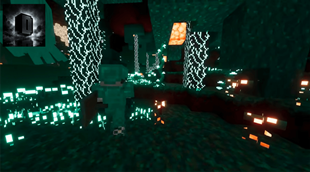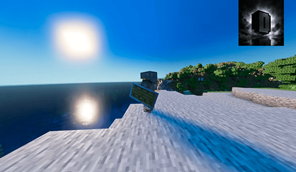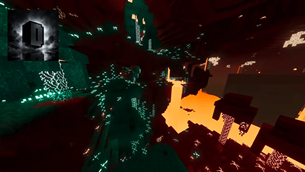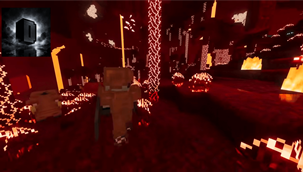
Why Aura Visuals - RTX is a top-tier shader mod for Minecraft 1.21.132
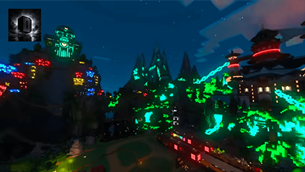
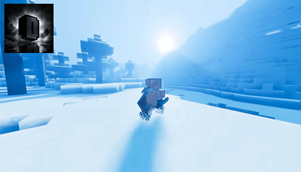
Developed by the talented creator PrabhatPie, Aura Visuals - RTX stands out as a highly recommended selection for your Minecraft client. It is fully optimized, compatibility-tested, and brings a major upgrade to the gameplay experience in Minecraft version 1.21.132.
⚙️ Quick Resource Specs
| Mod Creator | PrabhatPie |
| Latest Version | 1.21.132 |
| Supported Game Versions | 1.21.132, 1.21.131, 1.21.130, 1.21.124, 1.21.123 |
| File Size | 11.91 MB |
| Last Updated | |
| Total Downloads | 272 downloads |
🌌 AURA VISUALS
A Premium Minecraft Bedrock Visual Experience
✨ Created & Maintained by PrabhatPie
──────────────◆──────────────
✨ SEE MINECRAFT DIFFERENTLY.
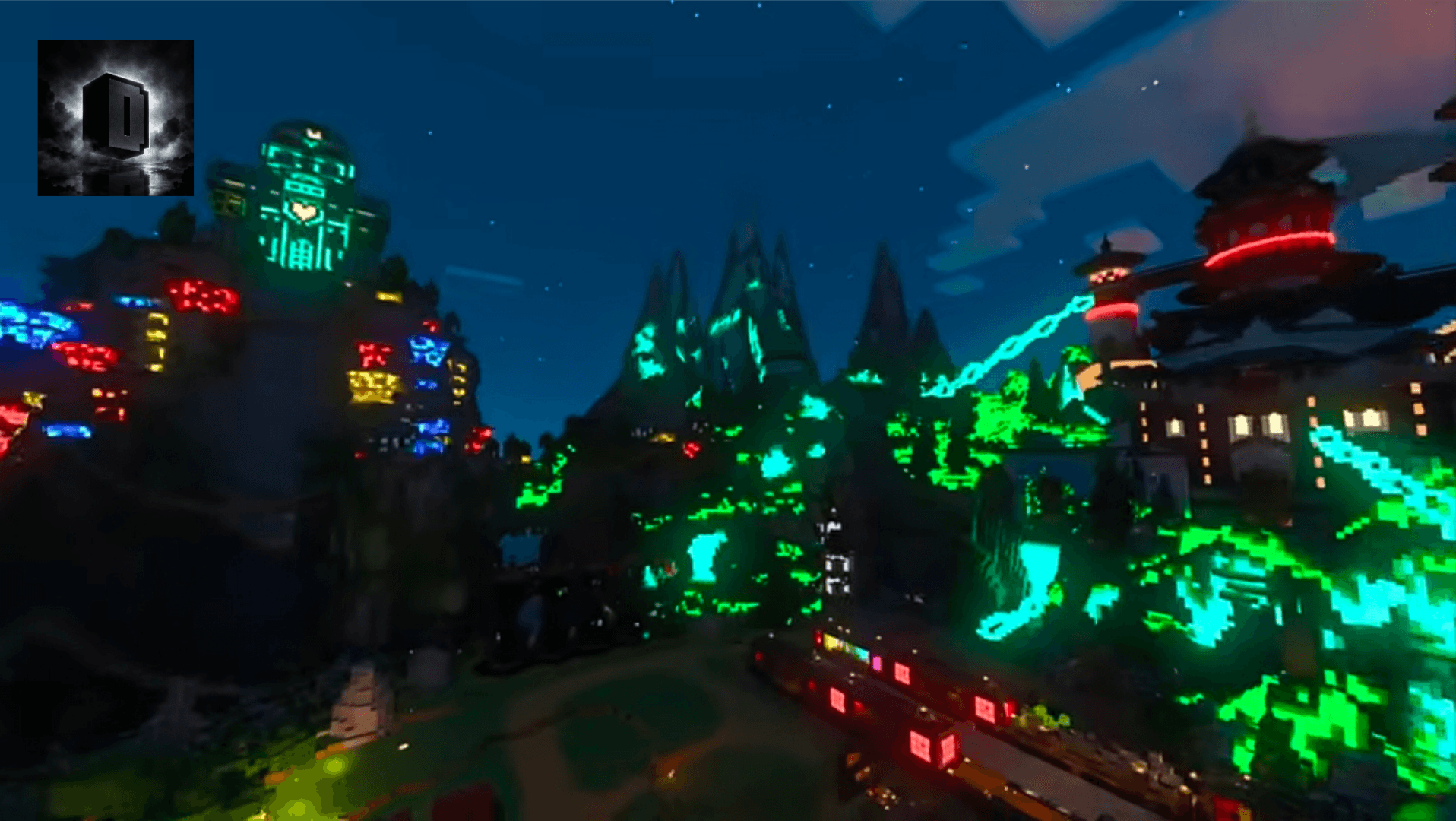
Aura Visuals is a carefully designed Minecraft Bedrock visual/resource pack focused on atmosphere, presentation, exploration, building, screenshots, cinematics and everyday survival gameplay.
──────────────◆──────────────
🛒 PRABHATPIE PREMIUM SHOP
💎 PREMIUM MINECRAFT CREATIONS
✨ SHADERS • VISUALS • PREMIUM PROJECTS ✨
Explore the official PrabhatPie Premium Shop for premium Minecraft shaders and other exclusive creations.
Looking for an enhanced visual experience beyond the free releases? The PrabhatPie Shop features premium Minecraft projects designed with a focus on visual quality, atmosphere, presentation and continued development.
🌌 PREMIUM SHADERS
🎨 Premium Visual Experiences
🌅 Enhanced Atmosphere
🌌 Cinematic Visuals
✨ Carefully Designed Effects
🎬 Content-Creator Friendly Projects
🛠️ Premium Releases & Updates
💖 SUPPORT THE DEVELOPMENT
Every purchase supports the continued development, testing, maintenance and improvement of PrabhatPie's Minecraft projects.
Premium products may have individual compatibility, installation, usage and license requirements. Please read the product information before purchasing.
📑 TABLE OF CONTENTS
01 — About Aura Visuals 02 — Visual Experience 03 — Professional Design 04 — Survival Friendly 05 — Main Features 06 — Visual Design Philosophy 07 — Performance 08 — Supported Platforms 09 — Android Installation 10 — Windows Installation 11 — Linux Information 12 — iOS / iPadOS Installation 13 — Xbox & PlayStation 14 — Applying Aura Visuals 15 — Recommended Settings 16 — Important Warning 17 — Troubleshooting 18 — Pack Information 19 — Resource Pack Compatibility 20 — Content Creator Usage 21 — Cinematic & Screenshot Usage 22 — License 23 — Anti-Reupload Notice 24 — Content Protection 25 — Updates 26 — Bug Reports 27 — Support 28 — Credits 29 — Disclaimer 30 — Final Message

🌌 01 — ABOUT AURA VISUALS
A NEW VISUAL EXPERIENCE FOR MINECRAFT BEDROCK
Aura Visuals is a Minecraft Bedrock Edition visual/resource pack created and maintained by PrabhatPie.
The project is designed around one simple idea:
“Make Minecraft feel more atmospheric, immersive and visually polished while keeping the familiar Minecraft experience.”
Aura Visuals focuses primarily on the visual side of Minecraft. It is intended for players who want to enjoy their existing worlds with a more polished visual presentation.
Perfect for:
🌅 Sunrise & sunset scenes
🌲 Exploration
🏔️ Mountains & landscapes
🌊 Oceans & rivers
🏠 Survival bases
🏰 Large builds
🎬 Cinematic videos
📸 Screenshots
🎥 Content creation
🎨 02 — VISUAL EXPERIENCE
ATMOSPHERE • LIGHTING • ENVIRONMENT • PRESENTATION
Aura Visuals is designed around the atmosphere of Minecraft. The goal is not to replace Minecraft's identity, but to provide a more visually polished environment for exploration and creativity.
🌅 Lighting & Atmosphere
Lighting plays an important role in how a Minecraft world feels. Depending on your Minecraft version, device and available rendering features, Aura Visuals can complement scenes such as:
🌅 Sunrise
🌇 Sunset
☀️ Daytime
🌙 Nighttime
🌲 Forests
🏔️ Mountains
🌊 Oceans
🏞️ Plains
🏘️ Villages
⛏️ Underground environments
🔥 Nether environments
🌊 Environment
Depending on your Minecraft version and supported rendering features, the visual presentation may differ in areas such as water, lighting, sky atmosphere, fog, environmental colors, reflections, shadows and overall scene presentation.
💎 03 — PROFESSIONAL
03 — PROFESSIONAL
Carefully designed visual presentation, documentation, branding, project information and player guidance.
The project is structured to provide a clean and professional experience from installation to gameplay.
✨ Clear documentation
✨ Project branding
✨ Installation guides
✨ Compatibility information
✨ License information
✨ Troubleshooting guidance
🟢 04 — SURVIVAL FRIENDLY
04 — SURVIVAL FRIENDLY
Created with normal Minecraft survival gameplay and convenience in mind.
Explore, build, mine, fight, travel and survive while enjoying your Minecraft world with Aura Visuals.
🏠 Build your base
⛏️ Mine underground
🌲 Explore forests
🌊 Travel across oceans
🏔️ Explore mountains
🌌 Experience nighttime environments
💎 05 — MAIN FEATURES
🟦 Premium Visual Design
A clean and modern visual identity designed around atmosphere and presentation.
🟪 Vibrant Visuals Focused
Designed for the modern Minecraft Bedrock visual environment and compatible rendering features.
🟢 Survival Friendly
Designed to complement normal survival gameplay rather than replace it.
🟨 Cinematic Friendly
Ideal for cinematic scenes, trailers, screenshots, showcases and videos.
🟧 Exploration Friendly
Designed for exploring forests, mountains, oceans, villages and more.
🟦 Building Friendly
Useful for builders who want a polished presentation for their creations.
🟥 Professional Branding
Project branding and creator information help identify Aura Visuals and its creator.
🎨 06 — VISUAL DESIGN PHILOSOPHY
01 — IMMERSION
Create a visual environment that makes exploration and world-building feel more atmospheric.
02 — CLEAN DESIGN
Keep the visual presentation recognizable and comfortable for normal gameplay.
03 — SURVIVAL FRIENDLY
Focus on visual enhancement without turning the project into a gameplay-changing modification.
04 — PROFESSIONAL
Maintain clear documentation, branding, installation instructions, licensing and project information.
⚡ 07 — PERFORMANCE
⚡ PERFORMANCE NOTICE
Performance can vary significantly depending on your device, GPU, CPU, RAM, Minecraft version, render distance, graphics settings and other active resource packs.
No resource pack can guarantee identical FPS on every device.
🟢 For Better Performance
• Lower Render Distance
• Lower Simulation Distance
• Use performance-oriented graphics settings
• Close unnecessary background applications
• Avoid stacking multiple heavy visual packs
• Keep Minecraft updated
🟡 Balanced
Try medium Render Distance, balanced graphics settings, moderate visual quality and limited additional resource packs.
🔴 Maximum Visual Quality
Higher visual settings may increase GPU workload. Use them only when your device can comfortably handle them.
🖥️ 08 — SUPPORTED PLATFORMS
🖥️ PLATFORM INFORMATION
Aura Visuals is intended for Minecraft Bedrock Edition.
Platform compatibility depends on Minecraft version, hardware and available graphics features.
🪟 Windows — Supported
Minecraft Bedrock with compatible hardware and graphics support.
📱 Android — Supported
Compatible Minecraft version and hardware required.
🍎 iOS / iPadOS — Supported
Compatible device and Minecraft version required.
🎮 Xbox / PlayStation
Availability depends on the console, Minecraft version and supported distribution method.
🐧 Linux — Unofficial
Native Vibrant Visuals compatibility is not guaranteed.
📱 09 — ANDROID INSTALLATION
📱 ANDROID — INSTALLATION GUIDE
The easiest method is to import the official .mcpack file directly through Minecraft.
STEP 1 — DOWNLOAD
Download the official Aura Visuals .mcpack.
STEP 2 — LOCATE THE FILE
Open your Android file manager and locate the downloaded file.
STEP 3 — IMPORT
Tap the .mcpack file and choose Minecraft when Android asks which application should open it.
STEP 4 — WAIT
Wait for Minecraft to finish importing the pack.
STEP 5 — ACTIVATE
Play → Edit World → Resource Packs → My Packs → Aura Visuals → Activate
STEP 6 — GRAPHICS
If your device and Minecraft version support the required graphics mode, enable it through Minecraft's Video/Graphics settings.
🪟 10 — WINDOWS INSTALLATION
🪟 WINDOWS — INSTALLATION GUIDE
STEP 1 — DOWNLOAD
Download the official Aura Visuals .mcpack.
STEP 2 — OPEN
Locate the file using Windows File Explorer and double-click it.
STEP 3 — IMPORT
Minecraft should launch and begin importing the pack.
STEP 4 — ACTIVATE
Play → Edit World → Resource Packs → My Packs → Aura Visuals → Activate
STEP 5 — GRAPHICS
Enable the compatible graphics mode through Minecraft's Video settings if available.
For better performance, update your GPU driver, close unnecessary applications, reduce Render Distance and test without additional heavy resource packs.
🐧 11 — LINUX INFORMATION
⚠️ LINUX — UNOFFICIAL SUPPORT
Aura Visuals does not guarantee native Linux compatibility.
Results depend on the method being used to run Minecraft Bedrock, the available graphics environment and Minecraft compatibility.
Possible issues can include graphics mode availability, rendering differences, import problems, performance differences and unsupported graphics features.
Linux should therefore be considered experimental/unofficial unless a specific configuration is confirmed.
🍎 12 — iOS / iPadOS INSTALLATION
🍎 iOS / iPadOS — INSTALLATION
1. Download the Aura Visuals .mcpack.
2. Open the downloaded file.
3. Choose Minecraft.
4. Wait for the pack to import.
5. Open Minecraft.
6. Edit/Create a world.
7. Open Resource Packs.
8. Open My Packs.
9. Activate Aura Visuals.
10. Enable the supported graphics mode if available.
🎮 13 — XBOX & PLAYSTATION
🎮 CONSOLE INFORMATION
Console installation can differ from Android and Windows because players generally do not manage Minecraft pack files through the same file-management system.
Use only a Minecraft-supported method for obtaining and activating resource-pack content on your console.
⚠️ Do not assume that manually copying a .mcpack file to a console will work in the same way as Android or Windows.
🌍 14 — HOW TO APPLY AURA VISUALS
🟦 WORLD-SPECIFIC
1. Open Minecraft.
2. Select Play.
3. Select your world.
4. Choose Edit.
5. Open Resource Packs.
6. Open My Packs.
7. Select Aura Visuals.
8. Press Activate.
9. Start the world.
🟢 GLOBAL RESOURCES
If your Minecraft version provides Global Resources:
1. Open Settings.
2. Open Global Resources.
3. Find Aura Visuals.
4. Activate the pack.
5. Return to Minecraft.
6. Load your world.
💡 Always create a backup of an important world before testing a new resource pack.
<h2 style="co
The Ultimate Guide to Aura Visuals - RTX
If you are exploring the vast world of Minecraft modifications, Aura Visuals - RTX by PrabhatPie is a standout shader that deserves your attention. With over 272 downloads, it has become a staple for players looking to enhance their experience. As the creator describes it, this project is "The Best Creations From PrabhatPie • RTX • Aura Visuals • One Of The Best Vibrant Visuals Shader. • Try One Time Before Die... :)". Whether you are a veteran builder constructing massive cities, or simply a casual player looking to upgrade your survival world, this guide will provide you with all the essential details on how Aura Visuals - RTX alters the game.
What Makes It Special?
Unlike standard shaders that simply alter superficial elements, Aura Visuals - RTX introduces a wide array of visual and mechanical features designed to seamlessly blend into the vanilla aesthetic. PrabhatPie has clearly spent significant time refining the project to ensure that every aspect feels polished and responsive for version 1.21.132.
Installation Guide
Getting Aura Visuals - RTX up and running is straightforward. Follow these step-by-step instructions:
- Verify Your Version: Ensure your Minecraft launcher is set to version 1.21.132.
- Install Mod Loader (if required): If this is a mod, download the compatible loader (Forge, Fabric, NeoForge).
- Download the File: Click the secure download button above to retrieve the official file from CurseForge.
- Move the File: Place the downloaded file into your `mods`, `shaderpacks`, or `resourcepacks` folder depending on the shader type.
- Launch and Enjoy: Open Minecraft, navigate to the respective settings menu, and activate Aura Visuals - RTX.
Compatibility & Performance
Compatibility is robust. Aura Visuals - RTX is designed specifically for version 1.21.132, taking full advantage of the latest engine optimizations. During typical gameplay, this addition maintains a stable frame rate, though lower-end laptops might experience slight stuttering. We recommend pairing this with performance boosters like Sodium or Iris to guarantee a silky-smooth experience.