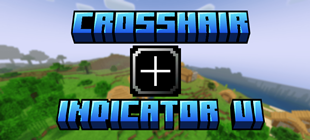

Why Crosshair Indicator UI is a top-tier texture pack mod for Minecraft 1.21
Developed by the talented creator HyperTechnoZ131, Crosshair Indicator UI stands out as a highly recommended selection for your Minecraft client. It is fully optimized, compatibility-tested, and brings a major upgrade to the gameplay experience in Minecraft version 1.21.
⚙️ Quick Resource Specs
| Mod Creator | HyperTechnoZ131 |
| Latest Version | 1.21 |
| Supported Game Versions | Minecraft 1.21+ |
| File Size | 1.39 MB |
| Last Updated | |
| Total Downloads | 56 downloads |
🎯 Crosshair Indicator UI
Change Crosshair Colour Without Leaving Your World!
No need to quit worlds to change the crosshair colour.Just change colour in world. Crosshair Indicator UI is here to make that a thing of the past!
Crosshair Indicator UI is an UI texture pack for Minecraft Bedrock Edition (MCPE) that helps you to change the crosshair colour in game without leaving the world.
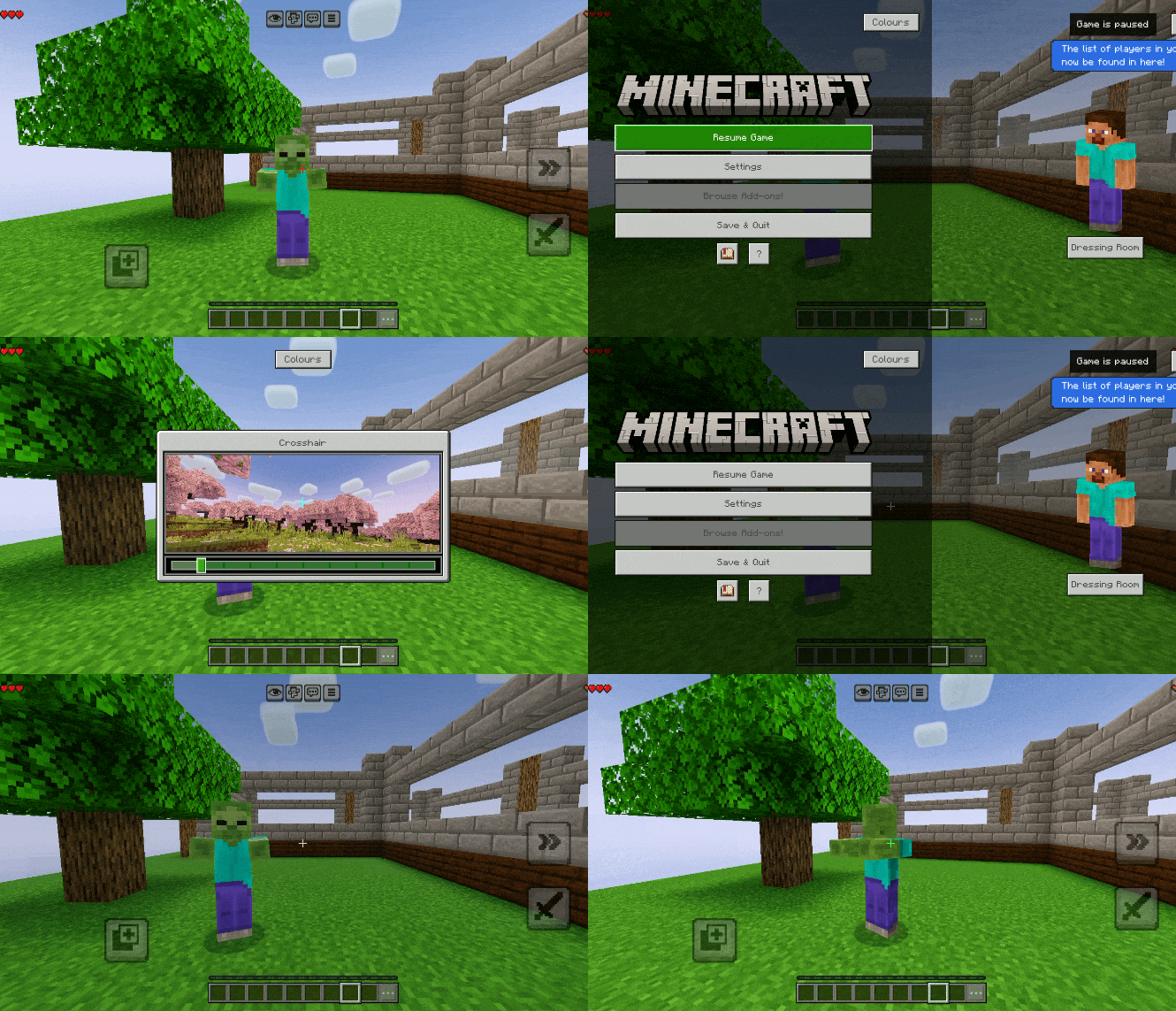
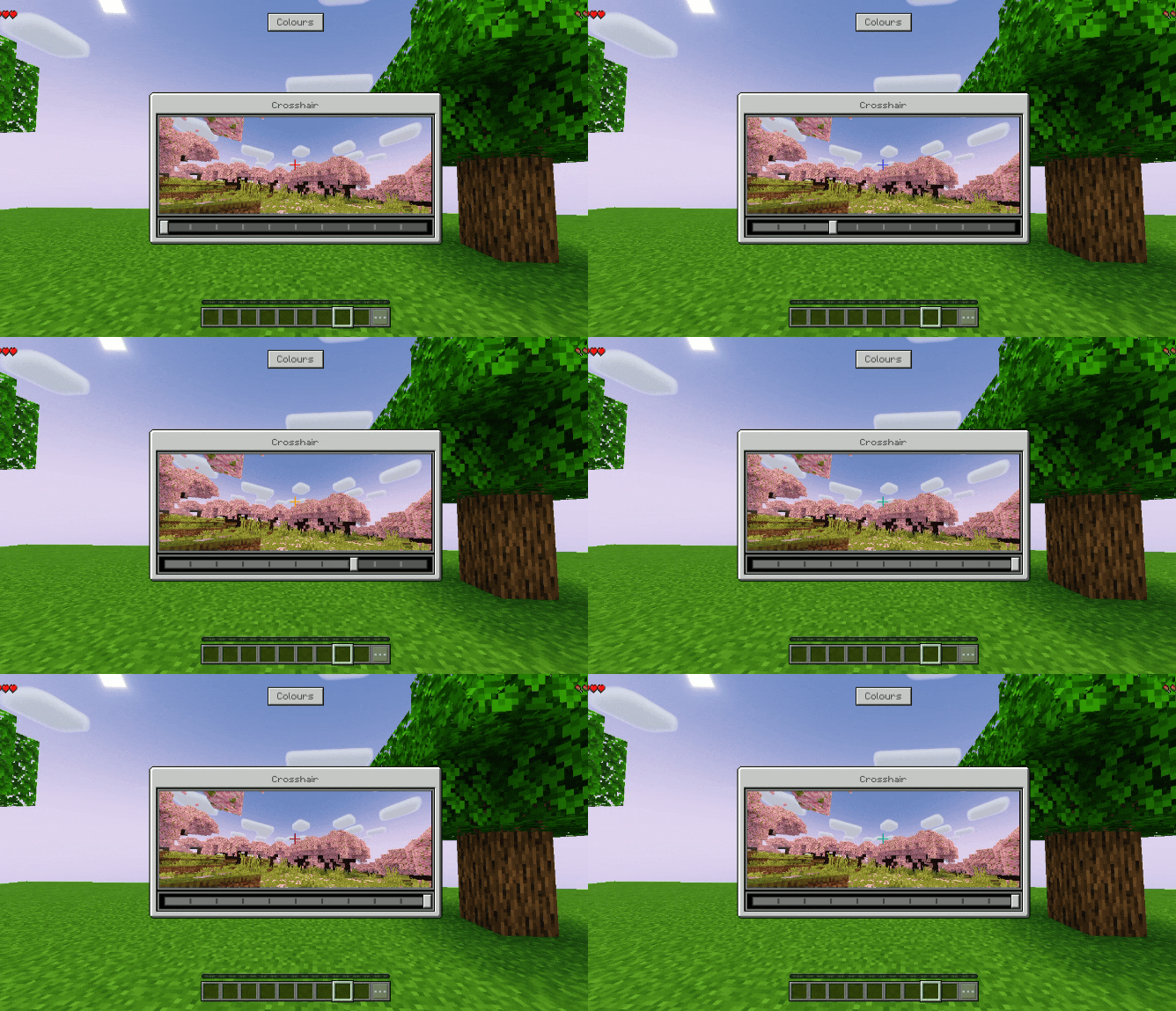
Pause game and click on 'Colours' and then slide with the slider to select your favourite colour.
You can use different colours for day and night.
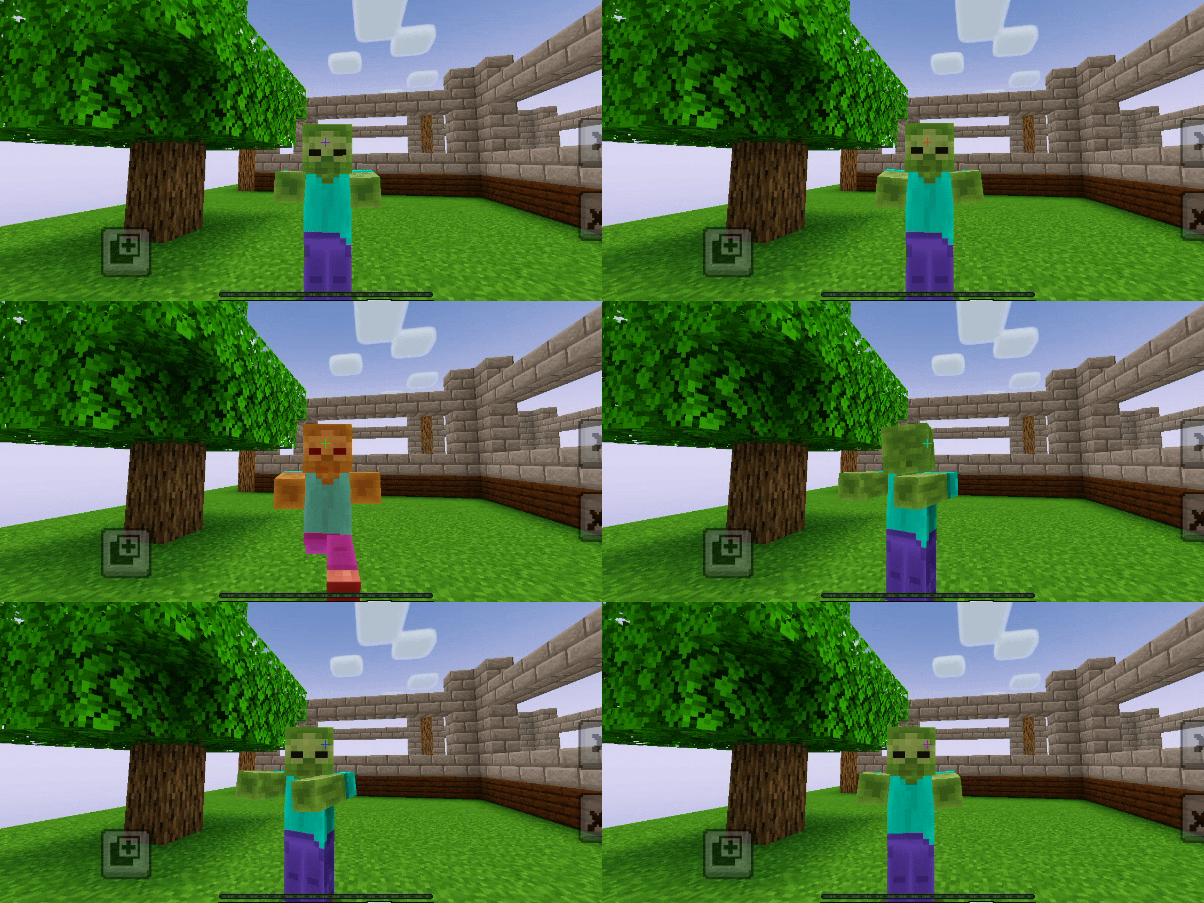
Crosshair Indicator helps you identify when an entity is positioned under your crosshair. When an entity is detected, your Crosshair Indicator changes to the selected colour, helping you recognize when a target is within your crosshair.
✨ Features
- 🎨 10 Colour Options: Choose from a variety of colours to match your preference.
- 🌈 RGB Animated Colour: Enjoy a continuously animated RGB colour option.
- 🎚️ Interactive Colour Slider: Easily switch between colours using the custom slider.
- 📋 In-Game Colour Menu: Access the colour selection panel directly from the pause menu.
- ⚡ Instant Colour Switching: Change your Crosshair Indicator colour without leaving your current world.
- 🎯 Entity Detection: The Crosshair Indicator responds when an entity appears under your crosshair.
- 🖥️ Custom UI Design: A clean and simple menu designed to fit naturally into Minecraft Bedrock Edition.
🎨 Available Colours
1. Aqua
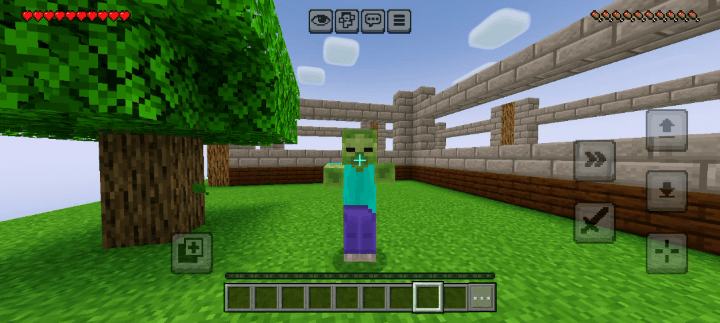
2. Black
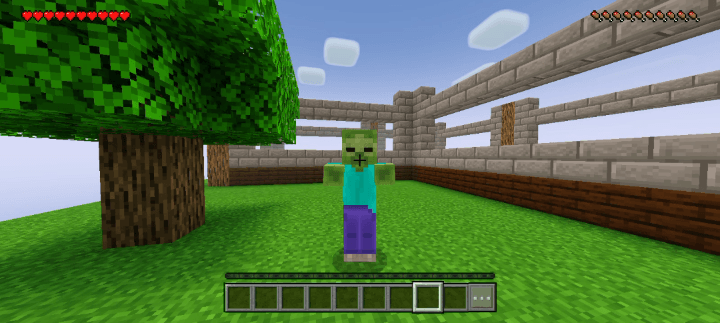
3. Blue
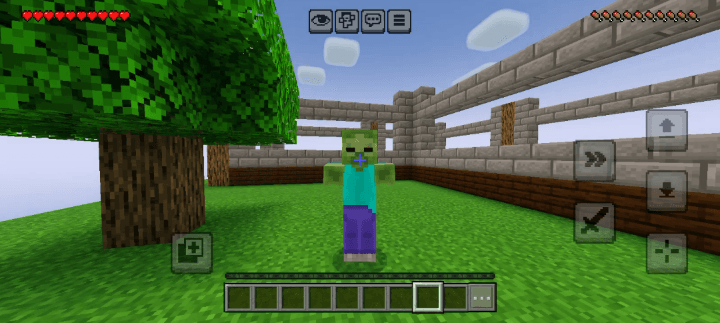
4. Gray
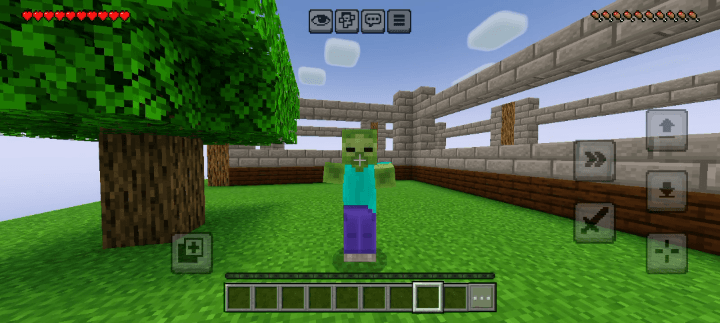
5. Green
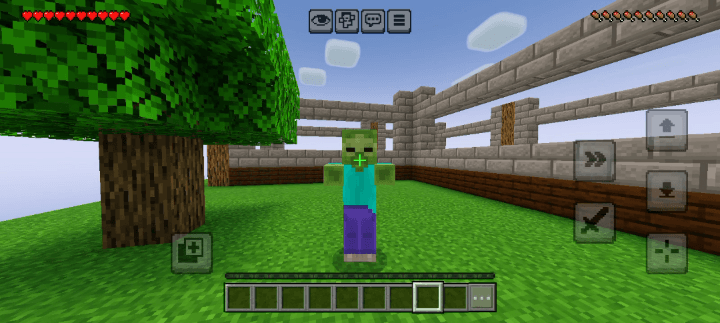
6. Light Purple
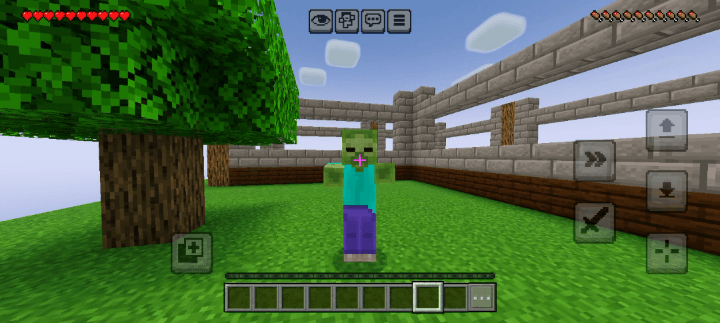
7. Orange
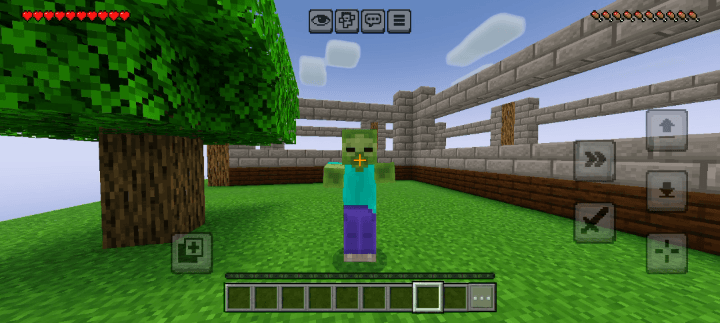
8. Red
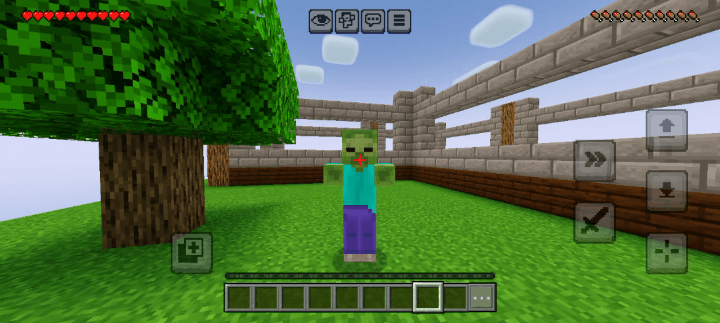
9. Yellow
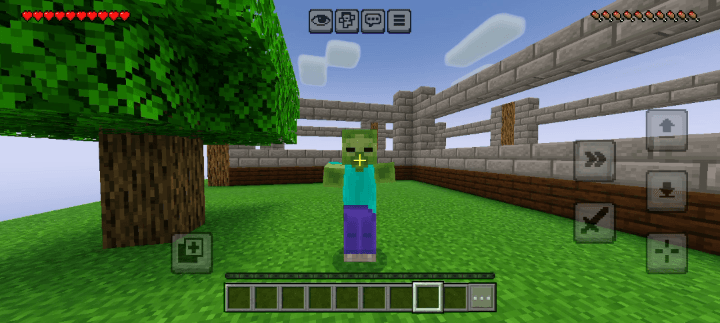
10. RGB Animated
🎮 How To Use
1. Activate Crosshair Indicator UI in your Resource Packs.
2. Enter any Minecraft world.
3. Open the pause menu.
4. Find and click the Colours button.
5. A custom Crosshair menu will appear in the middle of your screen.
6. Move the slider to select your preferred colour.
7. Return to your world and enjoy your selected Crosshair Indicator colour!
📱 Compatibility
- Game: Minecraft Bedrock Edition (MCPE)
- Supported Version: 1.26.x
- Platform: Android / MCPE
- Pack Type: UI Resource Pack
❤️ Support The Project
If you enjoy using Crosshair Indicator UI, consider leaving a comment, sharing your experience, and supporting the project!
Your feedback helps make future updates even better.
Stop leaving your world just to change a colour. Choose it instantly with Crosshair Indicator UI!
Made for Minecraft Bedrock Edition players.
"This pack is developing by myself.This pack may have bugs.Tell me bugs in comments.I will try to fix them.And I am thinking it for better upgades"
--HyperTechnoZ131--
The Ultimate Guide to Crosshair Indicator UI
If you are exploring the vast world of Minecraft modifications, Crosshair Indicator UI by HyperTechnoZ131 is a standout texture that deserves your attention. With over 56 downloads, it has become a staple for players looking to enhance their experience. As the creator describes it, this project is "No need to quit worlds to change the crosshair colour.Just change colour in world. Crosshair Indicator UI is here to make that a thing of the past!". Whether you are a veteran builder constructing massive cities, or simply a casual player looking to upgrade your survival world, this guide will provide you with all the essential details on how Crosshair Indicator UI alters the game.
What Makes It Special?
Unlike standard textures that simply alter superficial elements, Crosshair Indicator UI introduces a wide array of visual and mechanical features designed to seamlessly blend into the vanilla aesthetic. HyperTechnoZ131 has clearly spent significant time refining the project to ensure that every aspect feels polished and responsive for version 1.21.
Installation Guide
Getting Crosshair Indicator UI up and running is straightforward. Follow these step-by-step instructions:
- Verify Your Version: Ensure your Minecraft launcher is set to version 1.21.
- Install Mod Loader (if required): If this is a mod, download the compatible loader (Forge, Fabric, NeoForge).
- Download the File: Click the secure download button above to retrieve the official file from CurseForge.
- Move the File: Place the downloaded file into your `mods`, `shaderpacks`, or `resourcepacks` folder depending on the texture type.
- Launch and Enjoy: Open Minecraft, navigate to the respective settings menu, and activate Crosshair Indicator UI.
Compatibility & Performance
Compatibility is robust. Crosshair Indicator UI is designed specifically for version 1.21, taking full advantage of the latest engine optimizations. During typical gameplay, this addition maintains a stable frame rate, though lower-end laptops might experience slight stuttering. We recommend pairing this with performance boosters like Sodium or Iris to guarantee a silky-smooth experience.