Why Xaero's Minimap is a top-tier mod mod for Minecraft 1.15.2
Displays the nearby world terrain, players, mobs, entities in the corner of your screen. Lets you create waypoints which help you find the locations you've marked.
⚙️ Quick Resource Specs
| Mod Creator | xaero96 |
| Latest Version | 1.15.2 |
| Supported Game Versions | 1.16.5, 1.16.4, 1.16.3, 1.16.2, 1.15.2 |
| File Size | 773.80 KB |
| Last Updated | |
| Total Downloads | 233,965,727 downloads |
Do not use XaeroPlus with this mod! It is not affiliated with me and causes critical untrackable bugs/crashes. It is also allegedly affiliated with a server griefing group, which can put your server builds at risk.
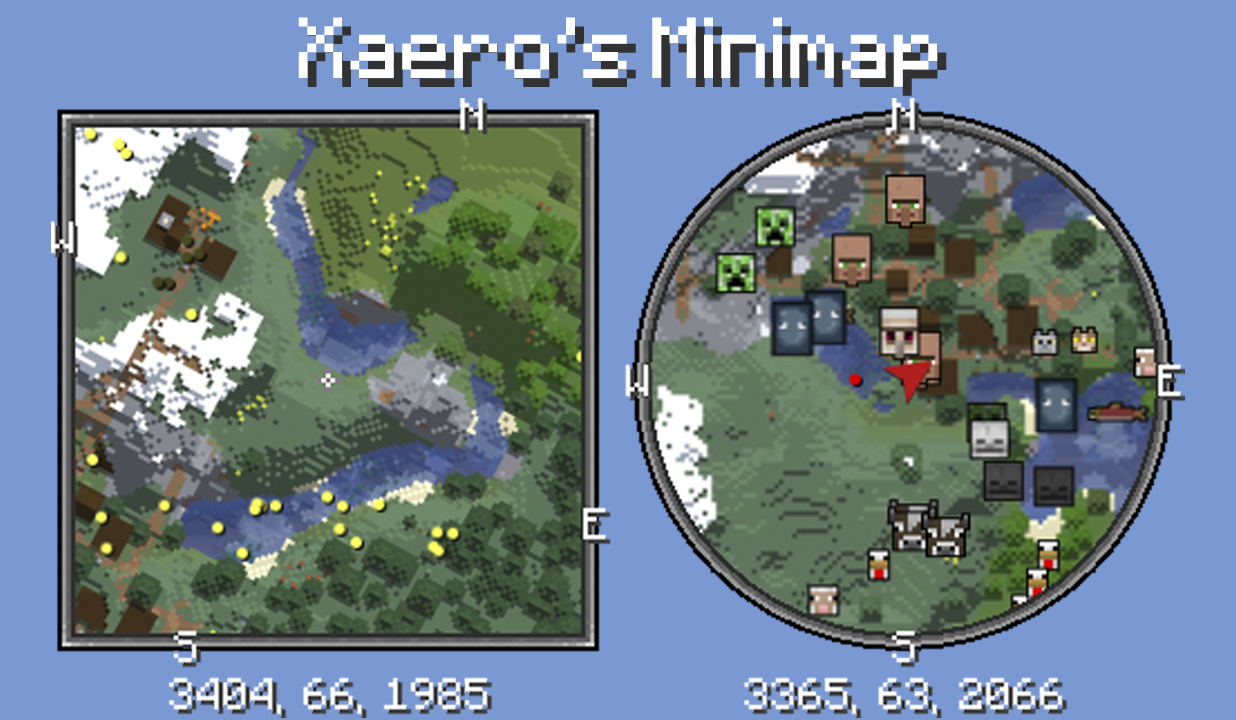
Unlike many other minimap mods, Xaero's minimap keeps the aesthetic of vanilla Minecraft, which helps it be a more seamless addition to the game. It is also the first rotating square minimap for Minecraft. Among a wide variety of customization settings, there is an option for a circle-shaped minimap and a separate setting for locking the minimap's rotation (using a direction arrow instead). The minimap can display the surrounding entities, including players, mobs and items, as dots with a custom color or as icons (usually heads). In addition to the default compass directions, you can place your own waypoints that are visible both on the minimap and in the game world. Waypoints help you find previously visited locations or reach specific coordinates, with optional teleportation. The minimap can display the surrounding blocks above ground and below ground (cave mode). These are just some of the features of the mod while there are many more. Please read the "Minimap features" section below for a more complete list. For the purposes of following multiplayer server rules, there are 2 mod editions, full and fair-play, the latter being designed for fair PVP. This mod is mostly client-sided. Installing it on the server side is optional for some additional features like world identification.
Follow me on Mastodon (Twitter alternative)? mas.to/@xaero96
Support me on Patreon? patreon.com/xaero96
Thank you!
undefined
Features
- Look of vanilla Minecraft.
- Multiple minimap size options including automatic.
- Multiple zoom options.
- Two minimap shape options: square or circle.
- Runs smoother than a lot of minimap mods.
- Can be placed anywhere on the screen using the "Change Position" setting/screen. You can even shift it by 1 pixel if you so wish. Can be useful when playing with other UI mods.
- 2 block color modes: Vanilla, which uses the colors of vanilla Minecraft maps and Accurate, which uses the colors of block textures and biomes. You can also enable biome colors for the Vanilla mode using a separate setting.
- A custom key binding (Z by default) to temporarily enlarge the minimap to take a better look around. All key bindings are in the vanilla controls menu. There are also settings for controlling the behavior of the minimap when it is enlarged, for example to center the minimap on the screen or to fully zoom out the minimap.
- Map shading customization with the "Terrain Depth" and "Terrain Slopes" settings.
- Compatible with Xaero's World Map. By default uses the map textures generated by the world map mod instead of generating its own. This improves performance when using both mods.
- Server-sided configs with an in-game UI screen that let you control in real time how players on your server are able to use the mod. You can base it on ranks/permission (xaero.minimap.enforced_server_profile). Supports FTB Ranks, Odyssey Roles, LuckPerms and general permission APIs.
- Option to limit your minimap access by binding it to an item required in your hotbar or to be equipped. For example, add minimapItemId:minecraft:compass anywhere in the config file to bind it to the compass item. This way the minimap will not be displayed unless you have the compass in your hotbar or equipped.
- Potion effects to control the usage of the minimap or some of its features for the players on your server/map. The following potion effects exist as of writing this: xaerominimap:no_minimap, xaerominimap:no_entity_radar, xaerominimap:no_waypoints, xaerominimap:no_cave_maps. The effects are of the neutral type by default, but you can also specify a harmful type by appending _harmful to the end of the effect ID, for example xaerominimap:no_entity_radar_harmful.
- Translated to a lot of languages.
- Option to lock north to stop the minimap from rotating and instead display the direction of your character with an arrow.
- Works both above and under ground thanks to the automatic cave mode. Cave mode should also activate inside buildings. You can choose the size of the "solid roof" above you that the mod searches for to activate cave mode. Roof size 3x3 and above should prevent cave mode activation when standing under log blocks while cutting wood.
- Waypoints. Practically an infinite amount. Can be teleported to (permission for teleportation chat command needed). Waypoints are rendered in the game world and displayed on the minimap. You can hide all or specific waypoints. Press B to create a new waypoint. Press U to list all the waypoints. In the waypoints list, you can add/edit a single or multiple waypoints, sort them, view waypoints from other sub-worlds/dimensions and much more.
- Local and global waypoints. To clear the screen from unnecessary waypoints you can create local waypoints that, unlike global ones, are affected by the "Max WP Draw Distance" option. This enables you to set a single global waypoint for a large area/region and multiple local ones in the area/region. Only the global waypoints will be visible when you are beyond the maximum draw distance.
- Waypoint sets. You can organize your waypoints by sorting them into sets. Your current set can be quickly switched with a key binding. All key bindings are in the vanilla controls menu.
- Waypoint sharing. You can share your waypoints in the game chat with players on the server. This is done from the waypoints list (press U).
- Deathpoints. An automatic skull-shaped waypoint is created on each death. Old deathpoints are converted to regular waypoints, which you can disable using the "Keep Old Deathpoints" setting.
- Displays chunk claims and ally players from the Open Parties and Claims mod.
- Togglable chunk grid. The chunk grid shows you where block chunks begin and end.
- Togglable slime chunks mode. The chunks where slimes can spawn are marked with a green overlay.
- Custom light overlay. You can setup a light overlay that will mark blocks with a custom color if they are within a custom light value range, which is block light from 0 to 7 by default. The default settings are meant for finding mob-spawnable blocks. You can use it for any purpose.
- Multi-world detection in multiplayer. If you install the minimap mod on the server side in addition to the client side, each server world should get a separate waypoints "sub-world". Otherwise a much less reliable world separation is used, which is based on the world spawnpoint. If you can't install the mod on the server side, it is recommended to turn off multi-world detection for servers that only have a single "world". You can do it through the Waypoints Menu (press U) -> Options screen.
- Displays mobs on the map as yellow dots. Hostile and friendly mobs can be colored differently. Can also be displayed as icons/heads. Check the "Entity Radar" settings.
- Displays players on the map as white dots or player heads. Can also be displayed as icons/heads. Check the "Entity Radar" settings.
- Displays items on the map as red dots. Check the "Entity Radar" settings.
- Displays all the other entities such as arrows and item frames as purple dots. undefinedDifferent types of entities can be disabled in the settings. Check the "Entity Radar" settings.
- Options for displaying entity names on the minimap undefinedin the "Entity Radar" settings.
- Zoom in and out key bindings (I and O by default) to efficiently change the zoom level to fit your preference or use case.
- Coordinates under the minimap.
- Current biome name under the minimap. Disabled by default and needs to be enabled in the mod settings (press Y).
- Light level under the minimap. Also disabled by default and needs to be enabled in the mod settings (press Y).
- Current game time under the minimap. Disabled by default. You can choose between the 12 hour and the 24 hour formats.
- Current camera angles under the minimap. Disabled by default.
- Setting to hide/unhide all waypoint coordinates from all UI screens. Can be useful for streams/videos.
- Setting to fully hide/unhide all mentions of server addresses in dropdown menus. The setting is set to "Partial" by default, which is probably good enough in most cases.
- A LOT MORE SETTINGS. Too many to list them all here. Press Y in game to open the settings and take a look.
- 2 mod editions: full and fair-play. Full version does not have any limits. Fair-play version does not display any entities or cave maps which is more suitable for PVP against people who don't use a minimap.
Forum thread | Get fair-play edition
FAQ
Why does waypoint teleportation not work for me?
There can be many reasons for this. The mod sends a chat command to teleport you to the waypoints, which is /tp @s x y z by default, so appropriate permission is necessary. The vanilla /tp command requires OP status (cheats enabled) but it's possible to have separate permissions for commands on a non-vanilla server with certain plugins installed. The used command can be changed in the minimap settings with the "Default Teleport Command" option or per server in the waypoints menu with the "Teleport Chat Command" option. Non-vanilla teleportation commands often don't support the selectors such as @s, so you might have to remove it from the configured command. Right-click teleportation on the world map uses its own setting for the command. You can read about it on the world map description page under FAQ.
If the waypoint "Teleport" button is disabled, then it can also mean multiple things. The most common reason for this is manually using waypoints from a sub-world that isn't the "auto" one but still from the same dimension. If the "auto" sub-world isn't what is supposed to be automatically picked on a certain world, then select the correct sub-world and use "Make Sub-world Auto" in the waypoints menu Options. This will swap all waypoints data between the 2 sub-worlds and you'll be able to teleport to the waypoints, which are now in your "auto" sub-world.
If the "auto" sub-world IS selected but the teleport button is still disabled, then it probably means that teleportation was manually disabled for the server/world. Check the teleportation option in the waypoints menu Options. If it's disabled, you can only enable it through the server-specific config file in the game directory -> xaero/minimap (XaeroWaypoints in older versions). I recommend exiting Minecraft before editing any config files. And make backups from time to time.
Why are my waypoints no longer shown for a specific server?
Do not panic. It's almost certainly not actually deleted. If you use the world map mod and it has also reset, then please start by restoring it first before dealing with the waypoints. Read the "Your world map has "reset" for a specific server?" section on the world map description page. Done with that? Please continue reading.
Start by opening the full waypoint menu. Press U ingame to do so. Check the vanilla controls menu, if the U key doesn't work. Go through the sub-worlds listed in the top-right dropdown menu. All waypoint sub-worlds for the current server address should be there. If none of them have the right waypoints for the world/dimension that you are in, then the server address was likely changed. Find the old server address in the top-LEFT dropdown menu, select it and do Options -> Make World/Server Auto. You should now be able to find the correct sub-world in the top-right dropdown menu. If the right sub-world is already marked with (auto), which means that the sub-world is automatically selected for your current world/dimension, then you should be good to go. If the wrong sub-world is marked with (auto), then please continue reading.
Using the world map mod?
One of the most common reasons for the wrong sub-world being automatically selected is the incorrect usage of the world map mod in multiplayer (since version 1.6). Make sure you select the correct map for your current world before confirming it. It affects which waypoints are being shown to you. The menu for map selection is on the world map screen, if you click the bottom left icon (unless it's open by default). Consider changing the map selection mode to one of the automatic ones, if it fits the server you're playing on.
Your currently confirmed map affects which waypoints sub-world in the minimap mod is considered automatic (auto). This allows each created map to have separate waypoints data. At any point in time, you can select and view any non-automatic waypoints sub-world by going to the waypoints menu (press U) and selecting it from top-right dropdown menu. You can make any sub-world automatic for your currently confirmed map by selecting Options -> Make Sub-World Auto.
Not using the world map mod?
The wrong sub-world being considered (auto) and therefore being automatically selected can be caused by a server plugin changing the behavior of the vanilla compass item and interfering with the mod's "multiworld" detection, if you have it enabled (disabled by default). In most such cases the compass item points to your bed instead of the global spawn point. Sleeping in the right bed again should bring everything back for you if sleeping in another one was the cause of the waypoints disappearing.
If this happened because of a new plugin being added (and if removing it is not an option for you), then here's how you can restore your waypoints:
1. Find the right waypoints "sub-world" from the top-right dropdown menu in the waypoints screen, it's the one with the waypoints that you need in your current dimension. Perhaps start with overworld?
2. Use Options -> Make sub-world auto.
3. Do the same for every dimension (enter the dimensions before doing it!).
4. If it's a simple server with 1 world (no hub/lobby worlds, no minigame worlds, creative plot worlds etc), then also turn off "Multiworld Detection" in the same Options menu. You can turn it back on later if you ever need it.
Contact me if you have questions!
How do I add my own entity icons or override the default ones?
First of all, make sure that you actually have the entity icons/heads enabled in the minimap settings -> Entity Radar Categories, whether you put it on "Always" or "Player List". Just make sure that you know how to display them. Those are the icons that this section is about.
Starting from version 21.6.0 of the minimap mod you are able to override the default icons displayed for entities with your own sprites/images by making a resource pack (or including the required resources in your own mod). In addition to that, you are also able to add or improve entity type variants support (different variants of the same entity type having different icons) by creating a simple mod of your own or including some code in your existing mod. Although this is usually unnecessary for simpler multi-variant entity types (most entity types).
By default, the minimap mod renders all entity icons using the entity renderers/models bound to the entities. This supports all vanilla mobs and some simple bipedal/quadrupedal mobs whose models have easily identifiable head model parts (head, ears, nose etc). If the mod fails to do so, the colored dot is displayed instead.
The relevant assets directory to the purpose of overriding the icons is /assets/xaerominimap/entity/icon/. You can find it inside the minimap mod's jar file and extract the contained files/folders for your reference. The jar contains an example file for overriding icons of a mod entity type /assets/xaerominimap/entity/icon/definition/example_mod/example_entity.json. The example file would corresponds to the entity type example_mod:example_entity, if such existed. Please read the comments in the file example_entity.json to learn about its structure, so that you are able to create your own icon definitions similar to it.
In addition to that, /assets/xaerominimap/entity/icon/definition/minecraft/ contains several example files for vanilla entity types that might require additional comments regarding the default entity type variants support. By default, entities have very simple variants support where the entity type variant ID is simply the entity's main texture resource location.
If you set the "debugEntityVariantIds" option in the minimap config file to true, then the variant IDs of newly encountered entities (variants) will be printed in the chat and the log/console.
Starting from version 21.8.0 of the minimap mod you are also able to configure your own model-based rendering. Please read the comments in the example file /assets/xaerominimap/entity/icon/definition/example_mod/example_entity.json for all the information you need to know.
Check out this awesome project by babybluetit, if you want to have a look at a real implementation of custom icons or actually use it: https://www.curseforge.com/minecraft/texture-packs/xaeros-minimap-modded-support
How do I prohibit the use of cave mode and/or entity radar on my server?
To do that, please install the mod on the server side (requires a NeoForge/Forge/Fabric/Quilt server as of writing this).
If your minimap version is at least 25.3.0, then set and use the "Minimap Server Settings" key binding to open server settings. You can enforce almost any option there, including Cave Mode, Entity Radar or even create custom entity radar categories.
On older mod versions, when you start your server, a new "common" config file will be created in the server directory (not the world folder), usually in the "config" folder. In the config file, you get multiple options that let you disable certain mod features for your players. Changes require a server restart.
Alternatively, if you can't install the mod, you can include the following strings in a server/system message sent to players (on login), which do the following:
§f§a§i§r§x§a§e§r§o - causes the client to disable cave mode (including world map) and entity radar (fair-play mode)
§x§a§e§r§o§m§m§n§e§t§h§e§r§i§s§f§a§i§r - causes minimap cave mode to work in the nether despite the fair-play mode. The world map has a separate code for this that looks almost identical.
§n§o§m§i§n§i§m§a§p - disables the minimap completely
§r§e§s§e§t§x§a§e§r§o - reset all the system message flags
Here's a third-party Spigot plugin that simplifies this for you (not affiliated with or created by me): XMMForceFairPlay
And a third-party datapack with similar functionality (not affiliated with or created by me): Xaero's Map Server Utils
Use any third-party addons at your own risk.
How do I let vanilla client players join my server that has the mod installed?
Look for the "common" config file in the config folder directly in your server directory (not the world folder), usually config/xaero/minimap. One of the options lets you disable the registration of status effects, which is what prevents players from joining. Changes require a server restart. Do the same for the world map mod.
For Developers
To hook into this mod with your own, first add the following repository to your build script:
repositories {
    maven {
        url "https://chocolateminecraft.com/maven"
        name "Xaero's Maven"
    }
}
If you're on Forge, make sure the Mixin gradle plugin is applied in your project (org.spongepowered.mixin), unless you're on 1.12.2.
Finally, add one or more of the following dependency declarations, replacing <minecraft version> and <mod version> with actual values you can see at https://chocolateminecraft.com/maven/xaero/minimap.
Forge with official Mojang mappings before 1.21.1:
implementation "xaero.minimap:xaerominimap-forge-<minecraft version>:<mod version>:dev"//purposely no deobfuscation!Forge with official Mojang mappings on 1.21.1 or after:
implementation "xaero.minimap:xaerominimap-forge-<minecraft version>:<mod version>"Forge with other mappings:
implementation fg.deobf("xaero.lib:xaerolib-forge-<minecraft version>:+")
implementation fg.deobf("xaero.minimap:xaerominimap-forge-<minecraft version>:<mod version>")
Fabric:
modImplementation "xaero.minimap:xaerominimap-fabric-<minecraft version>:<mod version>"NeoForge:
implementation "xaero.minimap:xaerominimap-neoforge-<minecraft version>:<mod version>"In "common" projects in multi-loader setups:
compileOnly "xaero.minimap:xaerominimap-common-<minecraft version>:<mod version>"Modpacks and Other
You are allowed to make videos using this mod.
Using it in your modpacks is allowed with the following conditions:
- Only monetization of the modpack through CurseForge or Modrinth is allowed (which includes sponsored links/banners in your modpack description), unless I have given you written permission to monetize it elsewhere. Feel free to private message me about it. I'm more likely to give you permission than not.
- If the modpack is distributed outside of CurseForge and Modrinth, then you must credit me by providing an easily accessible link to one of my official pages for the mod, to the users outside of CurseForge and Modrinth.
- The name and/or description of the modpack must not be easily confused with the names/descriptions of my mods.
- If I have given you written permission to monetize the modpack outside of CurseForge and Modrinth, then, if I request you to, you must remove monetization outside of CurseForge and Modrinth.
The Ultimate Guide to Xaero's Minimap
If you are exploring the vast world of Minecraft modifications, Xaero's Minimap by xaero96 is a standout mod that deserves your attention. With over 233,965,727 downloads, it has become a staple for players looking to enhance their experience. As the creator describes it, this project is "Displays the nearby world terrain, players, mobs, entities in the corner of your screen. Lets you create waypoints which help you find the locations you've marked.". Whether you are a veteran builder constructing massive cities, or simply a casual player looking to upgrade your survival world, this guide will provide you with all the essential details on how Xaero's Minimap alters the game.
What Makes It Special?
Unlike standard mods that simply alter superficial elements, Xaero's Minimap introduces a wide array of visual and mechanical features designed to seamlessly blend into the vanilla aesthetic. xaero96 has clearly spent significant time refining the project to ensure that every aspect feels polished and responsive for version 1.15.2.
Installation Guide
Getting Xaero's Minimap up and running is straightforward. Follow these step-by-step instructions:
- Verify Your Version: Ensure your Minecraft launcher is set to version 1.15.2.
- Install Mod Loader (if required): If this is a mod, download the compatible loader (Forge, Fabric, NeoForge).
- Download the File: Click the secure download button above to retrieve the official file from CurseForge.
- Move the File: Place the downloaded file into your `mods`, `shaderpacks`, or `resourcepacks` folder depending on the mod type.
- Launch and Enjoy: Open Minecraft, navigate to the respective settings menu, and activate Xaero's Minimap.
Compatibility & Performance
Compatibility is robust. Xaero's Minimap is designed specifically for version 1.15.2, taking full advantage of the latest engine optimizations. During typical gameplay, this addition maintains a stable frame rate, though lower-end laptops might experience slight stuttering. We recommend pairing this with performance boosters like Sodium or Iris to guarantee a silky-smooth experience.