
Why Chat Reporting Helper is a top-tier texture pack mod for Minecraft 1.21
Developed by the talented creator robotkoer, Chat Reporting Helper stands out as a highly recommended selection for your Minecraft client. It is fully optimized, compatibility-tested, and brings a major upgrade to the gameplay experience in Minecraft version 1.21.
⚙️ Quick Resource Specs
| Mod Creator | robotkoer |
| Latest Version | 1.21 |
| Supported Game Versions | 1.21.11, 1.21.10, 1.21.9, 1.21.8, 1.21.7 |
| File Size | 68.48 KB |
| Last Updated | |
| Total Downloads | 6,452,176 downloads |

As seen on Fabulously Optimized!
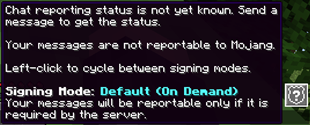
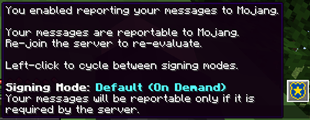
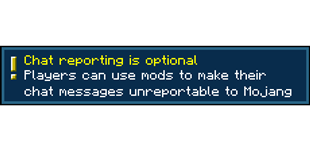
Minecraft's default in-game wording about chat reportability is technical, confusing and gives the assumption that chat reportability exists in every server. No Chat Reports' wording is also technical, biased towards negativity and very detailed. This resource pack fixes both by replacing those phrases with simple and unbiased, yet accurate phrases.
What this resource pack does
- Change the tooltips on vanilla report buttons and chat indicators
- Change the "messages can't be verified" warning toast
- Change the "Only Show Secure Chat" label and tooltip
- Change the description on vanilla report textbox
- Change the status icons and tooltips on No Chat Reports
- Ensures the phrases are short, clear and non-technical
- Is available in several languages
- Is an educational tool, not a protective one
- Focuses on practical use cases and actual server behavior, not theoretical possibilities
- Serve as an example and call to Mojang to improve transparency and clarity regarding this feature in the game
What this resource pack doesn't do
- State, whether chat reportability is good or bad
- Obstruct or mislead the meaning of any phrase
- Edit the report icon or "Player reporting" button
- Edit report or ban reasons
- Edit the ban screen
- Hide vanilla indicators or warning toast
- Replicate the features of No Chat Reports or any other mod or plugin
What do the icons mean?
The icons are only shown when you have No Chat Reports installed. For vanilla chat indicators, hover the gray box on the left.
 - status not yet known, you must send one chat message to get it
 - no chat messages can be reported to Mojang
 - most chat messages can be reported to Mojang, but the server does not prefer it and the playing user opts out
- In some cases, no messages can be reported but that is not reflected on the icon. You can confirm by seeing if you can report anyone on Social Interactions.
 - all chat messages can be reported to Mojang
 - only on Realms: all chat messages can be reported to Mojang and Mojang is passively monitoring the chat for violations
Who is this resource pack for
- Users, who don't understand how chat reportability works
- Users, who don't understand when and where chat reportability works
- Users, who are positive, neutral or slightly concerned about chat reportability
- Users, who don't understand the technical terms of vanilla or No Chat Reports
- Modpacks, that have been afraid to include No Chat Reports due to potential confusion or bias
- Modpacks, that want to ensure users know about chat reportability and where it works
- Parents, who want to ensure their children play on servers that enforce chat reportability
- Realm owners, who want to know the limitations and requirements of Realms
- Server owners, who enforce chat reportability and want to ensure users know how it works
Even more questions
Q: Do I have to use this with No Chat Reports?
A: No, though it is recommended to get more accurate status icons.
Q: Do I have to configure No Chat Reports a certain way to benefit from this?
A: It has to be enabled and not whitelisting by default to get the indicator icons, any other changes are up to you. You may configure it to skip prompts automatically (set "Default signing mode" to "On Demand") to make the experience smoother.
Q: Should I install No Chat Reports if I like chat reportability?
A: Yes, it is still recommended, as it is currently the only way to get a consistent indicator about the system being active on the server. Remember, the mod always respects the server's intent and does not contain any hacks or exploits.
Q: Why is this not in No Chat Reports itself?
A: No Chat Reports' default phrases do a better job at describing the technical details and giving users traffic light-like indicators to assist on avoiding chat reports. This resource pack is meant to be a more neutral approach similar to Steam's "VAC-secured" indicator - any user can make their own call on whether seeing the shield icon is a bad or good thing. I really hope Mojang will implement something like this in the vanilla game one day.
Edit: Mojang implemented a similar badge in their new online server list, but not yet in-game and no Java Edition servers have it.
Q: Does this replace every chat reportability-related phrase and icon?
A: No, only the minimum that is required for clear understanding.
Q: What about skin and username reporting?
A: As of version 3.0, the pack has been updated to reflect the new reporting selection screen. However, most of the features of this resource pack are still only focused on chat.
Q: I don't see the changed phrase where I should see it.
A: That might be due to a lack of resource pack translation in your language, so default phrases are displayed as a fallback. Please contribute!
Q: Can I contribute translations to my language?
A: Yes, please do! Join the Crowdin project and start translating.
Q: Where can I learn more about player reporting?
A: I have made a detailed writeup for my modpack Fabulously Optimized.
Q: Backports?
A: No. This is intended for Minecraft 1.19.4 and up, because both Minecraft and No Chat Reports have made some drastic changes compared to 1.19.3 and older.
The Ultimate Guide to Chat Reporting Helper
If you are exploring the vast world of Minecraft modifications, Chat Reporting Helper by robotkoer is a standout texture that deserves your attention. With over 6,452,176 downloads, it has become a staple for players looking to enhance their experience. As the creator describes it, this project is "An educational tool that explains chat reporting in a simple and neutral way.". Whether you are a veteran builder constructing massive cities, or simply a casual player looking to upgrade your survival world, this guide will provide you with all the essential details on how Chat Reporting Helper alters the game.
What Makes It Special?
Unlike standard textures that simply alter superficial elements, Chat Reporting Helper introduces a wide array of visual and mechanical features designed to seamlessly blend into the vanilla aesthetic. robotkoer has clearly spent significant time refining the project to ensure that every aspect feels polished and responsive for version 1.21.
Installation Guide
Getting Chat Reporting Helper up and running is straightforward. Follow these step-by-step instructions:
- Verify Your Version: Ensure your Minecraft launcher is set to version 1.21.
- Install Mod Loader (if required): If this is a mod, download the compatible loader (Forge, Fabric, NeoForge).
- Download the File: Click the secure download button above to retrieve the official file from CurseForge.
- Move the File: Place the downloaded file into your `mods`, `shaderpacks`, or `resourcepacks` folder depending on the texture type.
- Launch and Enjoy: Open Minecraft, navigate to the respective settings menu, and activate Chat Reporting Helper.
Compatibility & Performance
Compatibility is robust. Chat Reporting Helper is designed specifically for version 1.21, taking full advantage of the latest engine optimizations. During typical gameplay, this addition maintains a stable frame rate, though lower-end laptops might experience slight stuttering. We recommend pairing this with performance boosters like Sodium or Iris to guarantee a silky-smooth experience.